Connection Methods:
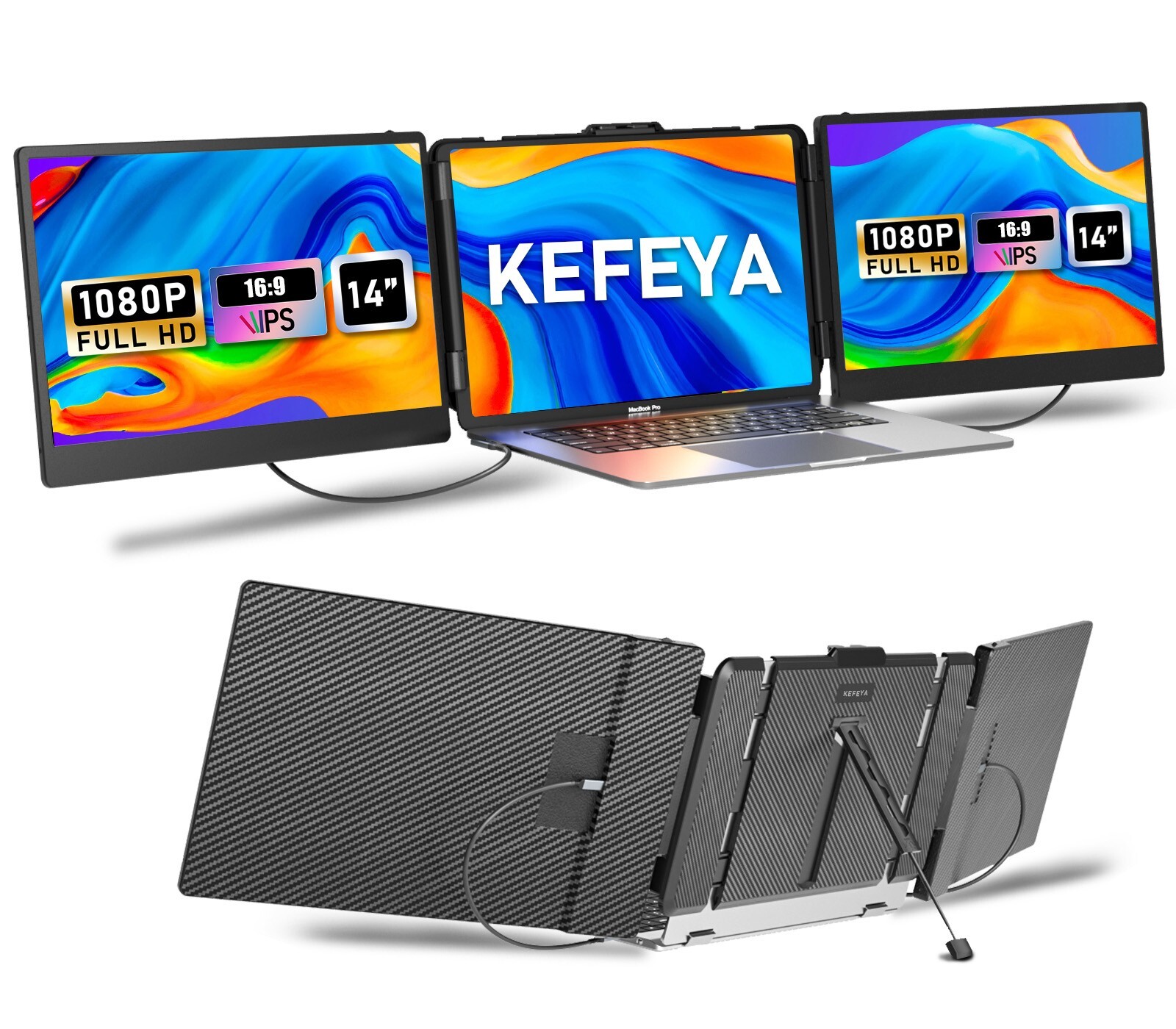
KEFEYA laptop screen extender allows you to light up one screen with a single Type-C cable when a full-featured Type-C port is available. If your device does not have this port, you can use a USB-A + HDMI cable instead (the second screen connects according to the available port).
A: At least 2 full function Type-C ports (supports video output & power output)
- Screen 1: Type-C to Type-C cable*1
- Screen 2: Type-C to Type-C cable*1
B: At least 2 HDMI ports + 2 USB-A ports (or 2 Non-functional Type-C port)
- Screen 1: HDMI to Type-C cable*1+USB-A to Type-C cable*1
- Screen 2: HDMI to Type-C cable*1+USB-A to Type-C cable*1
C: At least 1 full function Type-C port + 1 HDMI port (support video output) +1 USB-Aor 1 Non-functional Type-Cport (support power output).
- Screen 1: Type-C to Type-C cable*1
- Screen 2: HDMI to Type-C cable*1+USB-A to Type-C cable*1
Connection Notes:
- Check the back of the laptop monitor extender to ensure that the HDMI to Type-C cable is plugged into the Type-C port labeled HDMI on the screen extender (with font identification). Other types of cables included in the package connect to ports that are not labeled HDMI.
- The HDMI cable cannot support lighting the screen alone.This is because the HDMI cable acts as the video output. The screen also requires a USB-A to Type-C or Type-C to Type-C cable to power the screen. Otherwise, you will not be able to successfully light up the screen using only an HDMI cable or a USB-A cable. If the screen shows no signal after connecting with the HDMI+USB-A cable, try unplugging the HDMI cable and plugging it in again.
Useful Tips
Before purchasing this product, compare your laptop ports (and docking station) port types to see if they match one of the above connection options. If not, you can enquire us for further solutions. If the number of ports is not enough, you can choose to expand the number of ports with a port docking station.
Find us in theuser manualif you need help! OrClick on the seller's name at the bottom of the offerto see how to message us.
Question Troubleshooting:
- If after connecting the Type-C cable, one side of the expansion screen shows "No Signal": it means that your laptop's C port only supports power supply, then you only need to connect the HDMI cable to the monitor extension to provide it with video signals. In this case, one side of the screen needs to be connected to the screen with two cables.
- If the screen shows power saving mode reminder/flashing/black screen:it may be that your laptop has insufficient power or voltage to support three screens working at the same time. Please connect an external 5V/2A power adapter to supply power to the lapop.
- If your MacBook laptop uses the M1/M2/M3/M4/M4 Pro chips:These chips can only support two screens lit up at the same time (including the laptop screen). You'll need a port docking station that solves the display limitation issue with the chips. An example is the Kefeya H5-T cable ("B0DF7CG7MC")(If your laptop is missing a video out port, you can also use this H5-T cable to convert a UBS-A port or a non-functional Type-C port into a port with video out capability.)
If you encounter any problems during the use of the product, you can message us, we will certainly provide you with help and answers.If you do not receive a reply, it may be that you contacted the wrong place and we did not receive the inquiry.