 When you click on links to various merchants on this site and make a purchase, this can result in this site earning a commission. Affiliate programs and affiliations include, but are not limited to, the eBay Partner Network. When you click on links to various merchants on this site and make a purchase, this can result in this site earning a commission. Affiliate programs and affiliations include, but are not limited to, the eBay Partner Network.
- 🔵 Support Blu ray Disc Read&Write:With the upgraded chip performance, the external blu ray drive has a larger storage capacity and a faster reading and recording speed. Blu-ray reading speeds are up to 6x, DVDs up to 8x, and CDs up to 24x. Higher stability, faster reaction, stable performance and strong fault tolerance. Give users a better experience.
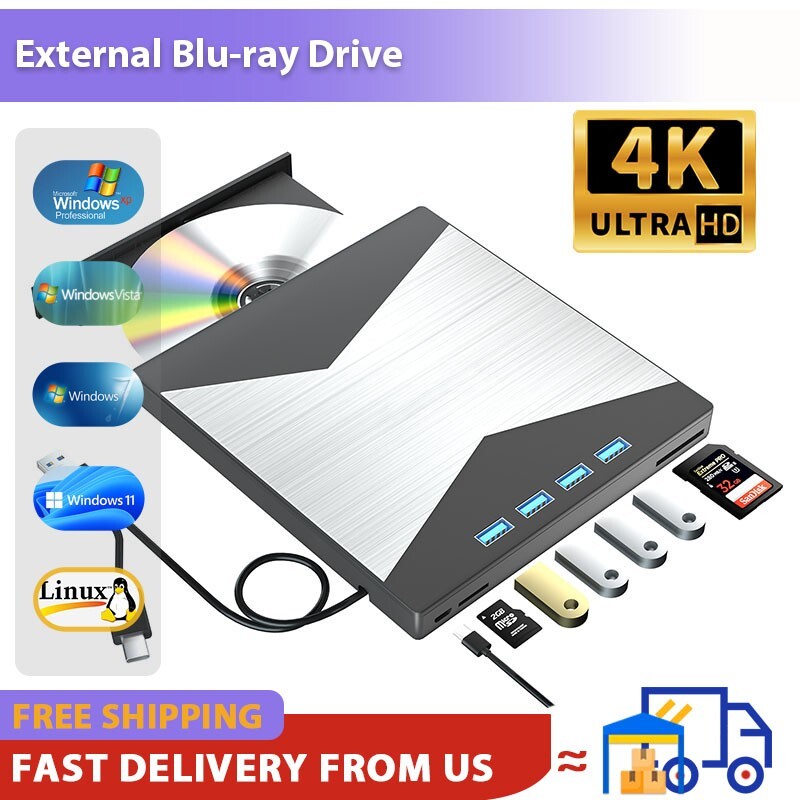
- 🔵 Multifunction:This 7-in-1 external Blu-ray drive offers versatile features. It has 1 SD card slot, 1 TF card slot, 1 USB 3.0 ports and 3 USB 3.0 portsfor data transfer or charging purposes. It supports reading BD/DVD/CD discs and writing BD/DVD/CD discs. You can easily copy music, movies, and data files from SD cards, TF cards, or through the USB/Type-C ports to your computer. You can also transfer files from a Blu-ray player to an SD card, USB hard drive, or USB flash drive.Please note that the SD card and TF card cannot be used simultaneously; you can only choose one at a time. However, both of them can function simultaneously with the 2 USB 3.0 ports.
- 🔵 High-definition Video and Audio Recording: This external Blu-ray drive is easy to use and requires no external drivers. It can be powered by a single USB cable, and its body features an eject button for convenient disc loading. Simply press the eject button and insert the disc, then plug the external Blu-ray burner into your computer's USB interface. Ensure that the playback software on your computer supports the Blu-ray format. You can download the "Cyberlink BD&3D Advisor" tool to test compatibility. We recommend using professional Blu-ray software like PowerDVD and Macgo Blu-ray Player to enjoy this product (Please note that the Blu ray player software is not included in the order).
- 🔵 Wide Compatibility: This external blueray/dvd drive is compatible with Laptop/MacBook Pro/MacBook Air/PC running Windows 11/10/8/7 and Mac OS.
- 🔵 Confident Purchase: 7 in 1 Multifunctional Blu-ray drive is backed by a 1-year quality warranty. If you encounter any concerns or issues with the product upon receiving it, please don't hesitate to contact us. We're committed to ensuring our customers' satisfaction and will do everything we can to assist you.
- Note: (1)Check whether your computer is compatible with the Blu ray to play and burn by downloading the software 'Cyberlink BD & 3D Advisor’. (2)Make sure you have the appropriate software installed before playing or burning a CD/DVD on your laptop with this BD player. To burn CDs/DVDs, download software such as Nero. When playing BDs, it is recommended to use the professional BD player 'VLC,' (For Mac OS, Macgo Bluray Player is recommended). (3)Playing a disc with a different region code to that of the drive may cause an error. Note that including the initial setting, the region code can only be changed 5 times.
Note: If your computer doesn't recognize your optical drive, it could be due to a hardware, driver, or operating system issue.
Here are some common solutions:
1. Check the hardware connection: Make sure the optical drive is properly connected to the computer. Check that the data and power cables are securely connected. Make sure the USB or other ports are connected properly.
2. Check the power supply of the optical drive: Make sure the power cord of the optical drive is connected properly and the power supply is normal. You can try to replace the power cord or socket to ensure that the power supply is normal.
3. Check Device Manager: Open Device Manager and check if the optical drive is shown in the device list. If the optical drive shows up with a yellow exclamation mark or question mark, there may be a driver problem. Right-click on the optical drive and select Update Driver, or uninstall the driver and restart the computer to let the system reinstall the driver.
4. Check the BIOS settings: Enter the computer's BIOS settings interface to see if the optical drive is disabled. If it is disabled, enable it.
5. Clean the optical drive: Sometimes, the optical drive may not work properly due to dust or dirt. Use a professional optical drive cleaning disc or cotton swab to gently clean the read/write head of the optical drive.
6. Check the operating system settings: In the operating system, open the Device Manager and make sure the optical drive is enabled.
7. You can also try to run the hardware and device troubleshooter in the "Hardware and Sound" option in the Control Panel.
8. Try another optical drive/disc. If the above methods don't work, connect another optical drive or put a disc in it to see if the problem is with the drive, disc, or computer. 4K Video Players for Windows: VLC, 5KPlayer,KMPlayer, 4K Video Players for Mac: IINA, Macgo, Elmedia Player, Cisdem Video Player.
 |
|