How to Apply the Vinyl Skin
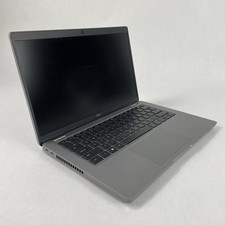
Dell Latitude 5420 – TEXTURED SILVER Laptop Skin Cover
⚠️ IMPORTANT INSTALLATION NOTE
Take your time during installation. If this is your first time applying a vinyl skin, using a small amount of liquid will make it easier to position the skin correctly.
1 Clean the Surface
Thoroughly clean the top cover of the laptop before applying the skin. Remove all dust, dirt, grease, and fingerprints.
The surface should be completely clean and free of debris.
2 Prepare Large Scratches — If Needed
If your laptop has large or deep scratches, similar to the example shown in the listing photos, we recommend using 400-grit sandpaper to gently sand down the edges of the scratches.
The goal is to smooth the edges so you will not see a deep pit or noticeable transition where the scratch was after the skin is applied.
If your laptop only has small or light scratches, you can skip this step.
Do not sand aggressively. Only smooth the damaged edges enough to reduce the visible transition. 3 Apply the Skin
Not everyone can apply a skin perfectly in one attempt. To make installation easier, we recommend using soapy water or Windex.
- Carefully peel the backing away from the adhesive side of the skin.
- Lightly spray the adhesive side with enough soapy water or Windex to cover the sticky area. Do not soak it.
- Place the skin onto the laptop and carefully adjust its position until it is properly aligned.
- While the surface is still wet, you can gently lift and reposition the skin if necessary.
4 Remove Liquid and Air Bubbles
Once the skin is correctly positioned, remove the remaining liquid from underneath the skin to prevent air bubbles.
Use a squeegee, plastic card, or credit card and gently push the liquid from the center toward the edges.
⚠️ DO NOT APPLY TOO MUCH PRESSURE
Excessive pressure can scratch or damage the vinyl surface.
Work slowly until most of the liquid and air bubbles have been pushed out.
💡 Tips for Best Results
- Work in a clean, dust-free area.
- Take your time and do not rush the installation.
- Use only a small amount of liquid.
- Make sure the skin is properly aligned before removing the remaining liquid.
- Use light pressure when using a squeegee or credit card.
- Allow the skin to fully dry before heavy use of the laptop.
- Small imperfections may become less noticeable as the skin dries.
INSTALLATION REQUIRES PATIENCE
Take your time for the best possible result.