 When you click on links to various merchants on this site and make a purchase, this can result in this site earning a commission. Affiliate programs and affiliations include, but are not limited to, the eBay Partner Network. When you click on links to various merchants on this site and make a purchase, this can result in this site earning a commission. Affiliate programs and affiliations include, but are not limited to, the eBay Partner Network.
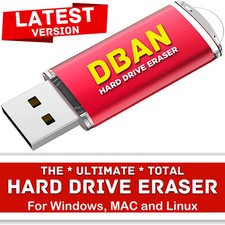
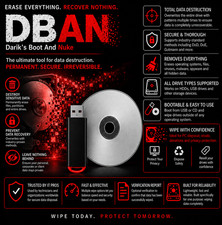
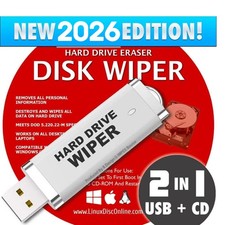
Securely wipe drives before disposal, resale, or re-use. Boot from this USB to access disk-erase tools for HDDs and (where supported) SSDs/NVMe using multi-pass overwrites, ATA Secure Erase, and sanitize workflows. Designed for refurbishers, IT admins, and privacy-conscious users. width="560" height="315" title="YouTube video player"> Bootable Erase USB HDD / SSD / NVMe* Multi-Pass Overwrite ATA Secure Erase UEFI / Legacy USB-A / USB-CWhat It Does - Erase HDDs: single-pass or multi-pass overwrites (e.g., random patterns, verify passes).
- Sanitize SSD/NVMe (where supported): trigger controller-level Secure Erase / Sanitize to reset cells to factory-fresh state.
- Wipe external drives: SATA/USB enclosures, some NVMe-to-USB bridges (capabilities vary by bridge).
- Verification & logs: view results and record essential wipe info for your records.
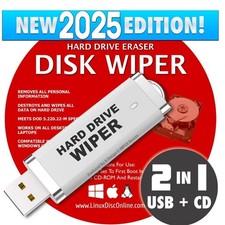
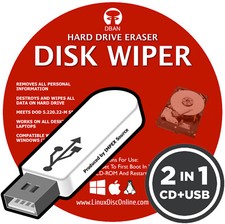
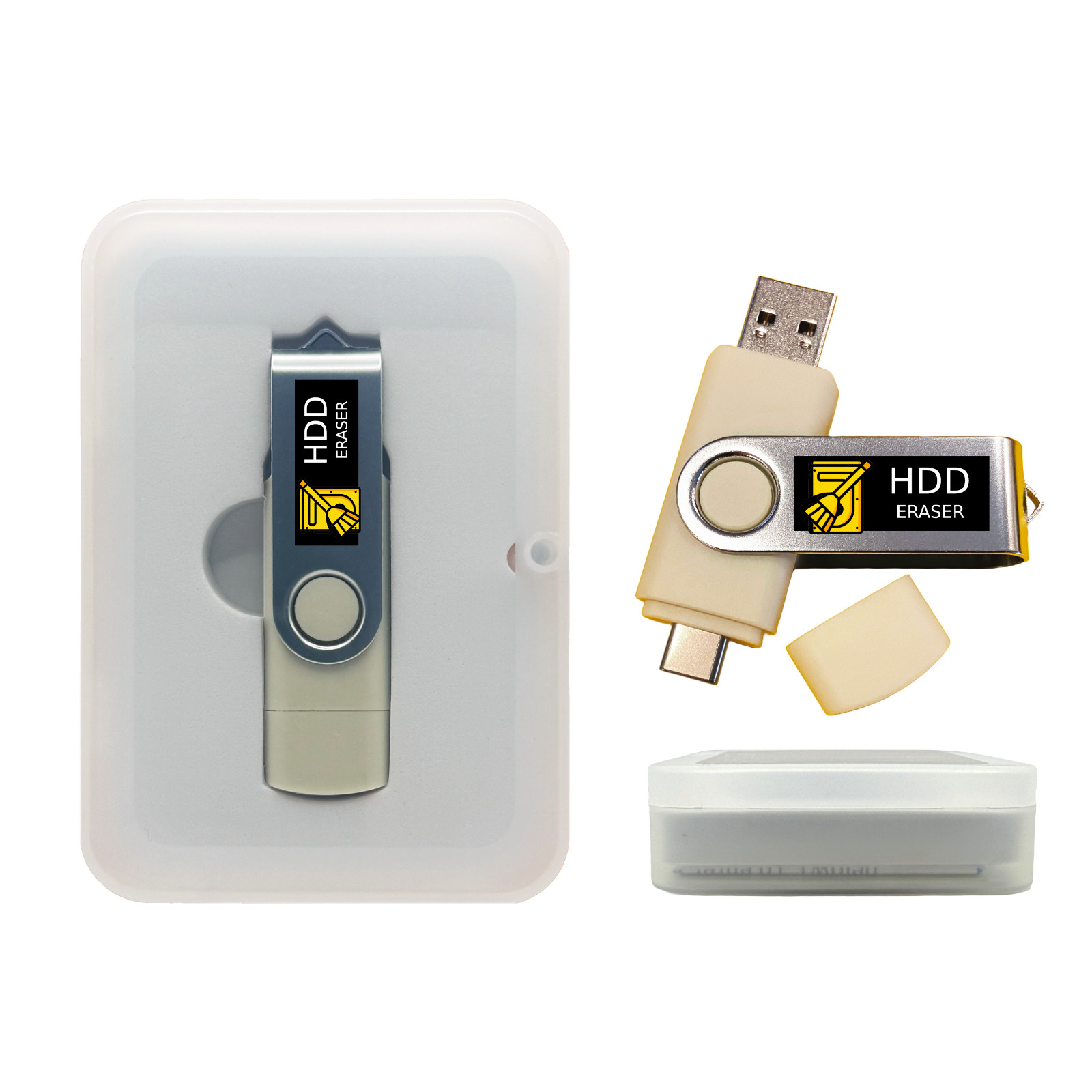
📦 Package / What’s Included - Bootable Live USB (dual USB-A/USB-C connector) with disk-erase toolkit.
- Quick-start guide: boot keys, selecting the correct drive, basic erase recipes.
- Optional packaging: standard bubble mailer or gift tin case (select above).
Boot: UEFI / Legacy BIOSModes: Overwrite • Secure Erase • Sanitize*Targets: HDD • SATA SSD • NVMe*Connector: USB-A & USB-C *Availability of Secure Erase / Sanitize depends on the drive firmware and the adapter/bridge used. 💻 Compatibility & Requirements - Systems: 64-bit (x86_64) PCs that can boot from USB (UEFI or Legacy BIOS).
- Drives: 2.5"/3.5" SATA HDD/SSD, M.2 NVMe via internal slot; some USB bridges limit features.
- Secure Boot: some PCs may require disabling Secure Boot to boot external media.
- Not for ARM-only Macs (M1/M2/M3).
🧭 Quick Erase Recipes - Fast wipe (HDD): 1-pass overwrite → verify selected sectors → finish.
- Thorough wipe (HDD): multi-pass overwrite (e.g., 3-pass random) → verify.
- SSD/NVMe sanitize: run Secure Erase/Sanitize (drive-native) → power-cycle if prompted → confirm.
- External USB caddies: if Secure Erase is unavailable, use overwrite, understanding some bridges block controller commands.
Note: For SSDs/NVMe, controller-level erase is preferred over multi-pass overwrites. 📒 Good Practices - Identify the correct drive before erasing (model, size, port) to avoid data loss.
- Unplug extra disks to minimize mistakes; back up anything important first.
- Record essential details (date, drive model/serial, method used, pass count, result).
- For enterprise/regulated needs, consult your policy for acceptable methods (e.g., NIST SP 800-88 guidance).
⚠️ Warnings & Limits - Erasing is destructive and irreversible. Double-check target drive.
- Some USB-to-SATA/NVMe bridges block Secure Erase/Sanitize; use direct motherboard ports if needed.
- Self-encrypting drives (SED) may support an instant cryptographic erase via sanitize features.
- Very large drives and multi-pass overwrites can take many hours; keep the system powered.
🔧 Troubleshooting - USB not listed in boot menu: try another port, disable Fast Boot, or enable Legacy/CSM temporarily.
- Erase option greyed out for SSD/NVMe: connect drive directly to SATA/NVMe port; some USB bridges block commands.
- Secure Erase fails “frozen”: suspend/resume or power-cycle per on-screen instructions, then retry.
- Drive not detected: check cables/adapters; confirm in system BIOS/UEFI.
 |
|