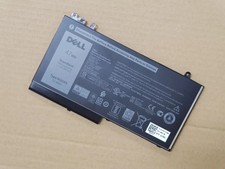
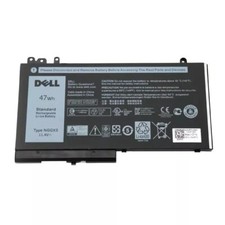
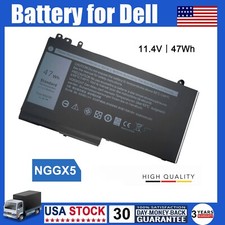
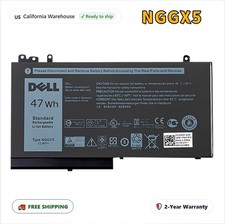
47Wh standard Rechargeable Li-polymer BatteryType NGGX5 11.4VSpecification:
Item:NGGX5 47Wh standard Rechargeable Li-polymer Battery
Battery New from Manufacturer, Grade A Cell
NOTE:
There are three different type batteries, 47 Wh (3–Cell) / 84 Wh (6–cell) / 62 Wh (4–cell), can work for Dell Latitude E5470 5470 E5570 5570 E5270 5270 laptops, but they cannot be replaced, please make sure that your original battery is 47Wh 11.4V.
This NGGX5 W9FNJ battery is only an universal replacement of 47Wh 11.4V battery,cannot replace with part WJ5R2/6MT4T/G5M10/RYXXH/R0TMP, please remove your laptop battery cover and find out the detail power and voltage of your original battery.
Compatible Part Numbers:
NGGX5 0NGGX5 954DF 0954DF RDRH9 0RDRH9 W9FNJ 0W9FNJ JY8DF 0JY8D6 XWDK1 XKWC7 NCVW8 53VJ6 451-BBUJ 451-BBUL 451-BBUK 451- BBUM NGGX5-BTI
Compatible with Dell Laptop Models:
for Dell Latitude 12 E5270 5270 Series Notebook
for Dell Latitude 14 E5470 5470 Series Notebook
for Dell Latitude 15 E5570 5570 Series Notebook
for Dell Latitude P48F P48F001 P48F002 Series Notebook
for Dell Precision M3510 3510 Series Notebook
Why the laptop does not recognize the battery?
- Could be caused by battery loose. Please re-install the battery and make sure that the battery cable and the motherboard interface are tightly inserted.
- Maybe due to conductive material damaged which the laptop motherboard and battery anode and cathode contact position, you can try to confirm it with your original battery.
- Check whether the battery drive is in normal condition, if not, download the corresponding driver software to update.
How to purchase the correct of battery?
Tip 1: You have to find your specific laptop model before ordering a correct battery. How to check your laptop model?
- Step 1: Press Windows + R to open Run window.
- Step 2: Input "msinfo32" in the empty box and click OK to open System Information.
- Step 3: Keep in the System Summary section, and you will find the System Model item in the right pane.
Tip 2: Remove Battery from Laptop to find your laptop battery part number
- Step 1: Switch off the laptop and unplug the power cable in case of electric shock
- Step 2: Remove the back panel with the screwdriver. You should to this with care avoiding any harm to the laptop components.
- Step 3: Disconnect the cable connected to the battery and then take out the battery. After that, you can check the specifications of your battery.
Install A New Battery:
- You need to turn off your laptop and disconnect the power.
- Disconnect the connection between the old battery and the motherboard to avoid unnecessary damage caused by disassembling the battery. Then unscrew the old battery screws one by one and carefully save each screw.
- Remove the old battery, carefully install the new battery on the battery case, screw in the screw, and connect the wiring of the new battery.
- If you don't understand the above steps, you can search for the video about laptop battery installation on YouTube. Maybe it will help you.
Laptop Battery Instructions:
- Discharge the new battery to 10% (not 0%), then charge(100%) and cycle 3-5 times to wake up the new battery.
- It can calibrate the state of the battery by performing a complete and effective charging and discharging of the battery once a month.
- Charge it to around 50% when you store it long term.
- Do not keep your battery below 5% or deep discharge state (long time 0%), may turn on battery protection and cause the battery to fail to charge.
- Please feel welcomed to notify us of any inconvenience or fault in our battery.
The following are troubleshooting methods:
- Turn off the laptop.
- Unplug AC power.
- Remove the battery.
- Replace AC power.
- Turn on laptop,allow OS to boot.
- Once logged into the machine, perform a normal shut down.
- Unplug AC power.
- Replace battery.
On Aug 12, 2022 at 02:44:13 PDT, seller added the following information: