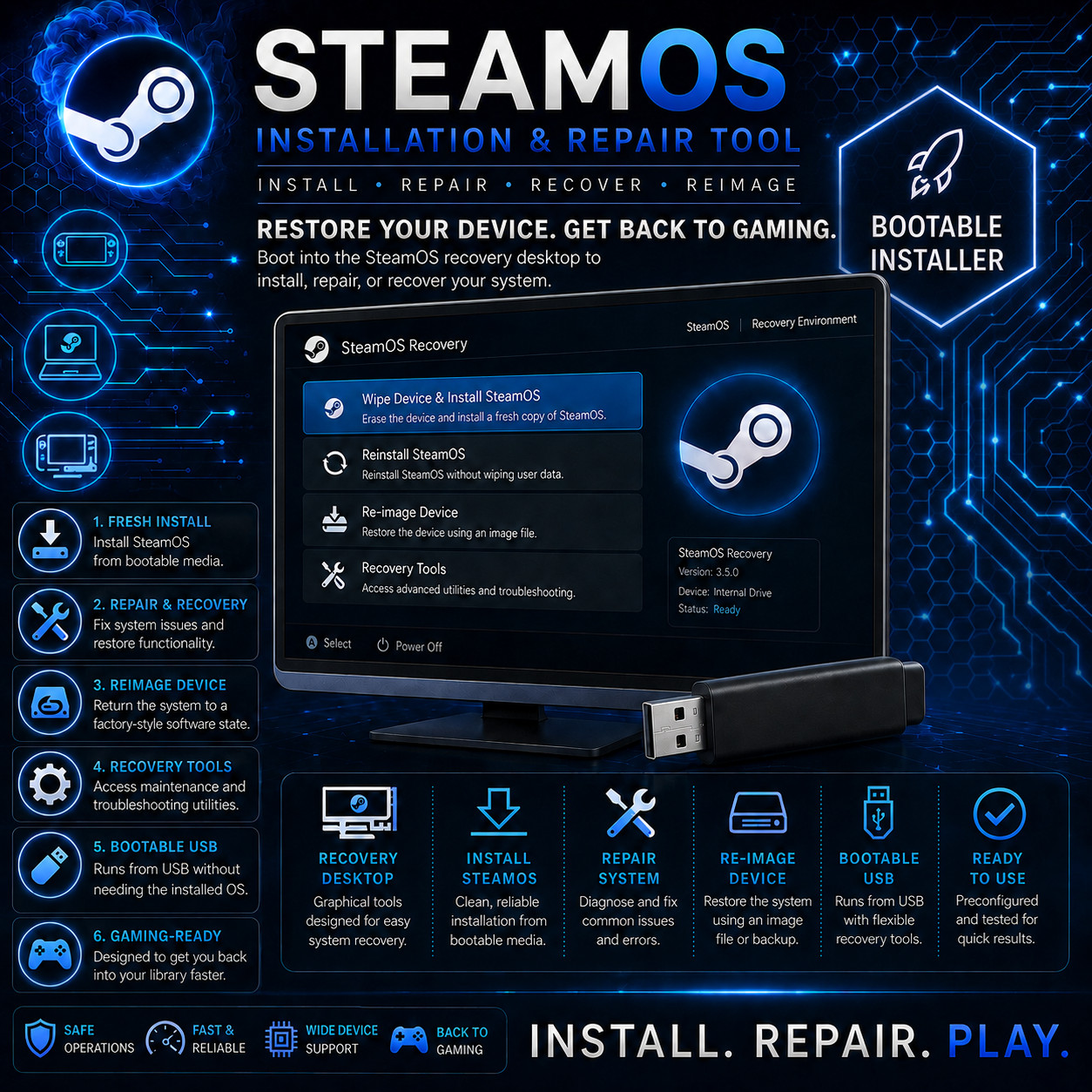
SteamOS Installation & Recovery Media STEAMOS INSTALLATION & REPAIR TOOL INSTALL · REPAIR · RE-IMAGE · RECOVER Restore your SteamOS device and get back to gaming. Bootable Recovery USB Install SteamOS Repair & Recover
The SteamOS Installation & Repair Tool is a prepared bootable recovery USB based on Valve's SteamOS installation and recovery workflow. It is designed for situations where you want to install SteamOS, return a device to SteamOS after installing another operating system, perform a complete factory-style re-image, or repair a damaged SteamOS installation. Once booted, the recovery environment provides the same core installation and recovery choices described in Valve's support documentation.
Four Core Recovery Options ⬇️ Wipe Device & Install SteamOS Completely erases the target device and installs the stock SteamOS system. Useful for a clean SteamOS installation, returning from another operating system, or starting over after serious software problems. 🛠️ Repair SteamOS Reinstalls SteamOS while attempting to preserve installed games and personal content. This is the less-destructive option to try when the operating system itself is damaged or no longer booting correctly. 💽 Re-image Device Performs a full factory-style reset. User information, installed games, applications, and other operating systems are erased and replaced with the stock SteamOS installation. ⚙️ Recovery Tools Opens the recovery tools used for more advanced troubleshooting, including making changes related to the device's boot partition. Why Keep a Recovery USB Ready? 🎮 Return to SteamOS after another OS If you experimented with another operating system and want to return the device to SteamOS, the recovery environment provides the official re-installation path. 🚑 Recover a device that will not boot Boot from external recovery media even when the installed SteamOS environment is damaged or inaccessible, then choose the appropriate repair or re-image option. 🧹 Start over with a clean system Use the wipe-and-install or re-image workflow when you intentionally want to erase the current setup and restore stock SteamOS. 🔧 Attempt a less-destructive repair first The Repair SteamOS option is designed to reinstall the operating system while attempting to preserve games and personal content. 💾 No recovery-image preparation required Skip the separate process of downloading the recovery image, locating imaging software, formatting a spare USB drive, and writing the image yourself. 🧰 Useful emergency tool to keep nearby A dedicated recovery USB is convenient to keep with your gaming hardware so the installation environment is available when the main system has a serious problem. How It Works 1 Insert USB Connect the prepared recovery USB to the SteamOS device. 2 Boot Recovery Media Open the device's boot manager and select the EFI USB recovery device. 3 Choose Recovery Option Use the recovery desktop to install, repair, re-image, or open recovery tools. 4 Restart & Play When the selected process finishes, restart and continue through the SteamOS setup or restored system. Device Compatibility SteamOS hardware support continues to expand. Compatibility depends on the specific device and hardware configuration. The categories below reflect Valve's current SteamOS support guidance at the time this listing was prepared. Device / Category Current Guidance Steam Deck Powered by SteamOS Steam Machine Powered by SteamOS Lenovo Legion Go S Powered by SteamOS Lenovo Legion Go SteamOS beta compatibility ASUS ROG Ally / Ally X SteamOS beta compatibility Other AMD-powered handhelds / PCs Compatibility has improved, but support varies by hardware. Check your exact device before erasing an existing installation. Secure Boot: Valve notes that on most non-Steam Deck devices, Secure Boot may need to be disabled in the device's BIOS/UEFI before booting and re-imaging from the recovery USB. Steam Deck Boot Instructions 1 Power the Steam Deck completely off and connect the prepared recovery USB through a compatible USB-C adapter, hub, or dock if needed. 2 Open the Steam Deck Boot Manager and select EFI USB Device. 3 Allow the recovery environment time to load. The screen may remain dark briefly while the USB starts. 4 Once the recovery desktop appears, choose the installation or recovery option appropriate for your situation. What You Receive
1 × prepared bootable USB recovery drive - SteamOS installation & recovery environment prepared from the current recovery image available when your order is assembled
- Step-by-step PDF quick-start guide explaining booting, installation, repair, and re-image choices
- Steam Deck boot reference plus general BIOS/UEFI boot guidance for compatible non-Deck hardware
- USB professionally prepared, tested, and verified before shipment
Frequently Asked Questions 🎮 Is this only for Steam Deck? No. Steam Deck remains a primary supported device, but Valve has expanded SteamOS support to additional hardware. Compatibility still varies, especially outside devices explicitly listed as Powered by SteamOS, so check your exact model before wiping an existing operating system. 🧹 Which option completely erases everything? Wipe Device & Install SteamOS and Re-image Device are destructive workflows. Re-image Device performs a full factory-style reset, erasing user data, installed games, applications, and other operating systems. 🛠️ Can Repair SteamOS save my games? Valve describes Repair SteamOS as reinstalling SteamOS while attempting to preserve games and personal content. Preservation is not guaranteed, so back up anything irreplaceable whenever possible. 🪟 Can I use it after installing Windows on my handheld? Yes, on hardware compatible with SteamOS. Valve specifically lists returning to SteamOS after another operating system as one reason to use the installation/re-image workflow. 🔐 Why will SteamOS not boot from the USB on my handheld? On many non-Steam Deck devices, Secure Boot must be disabled before the recovery USB can boot. This setting is normally located in the device's BIOS/UEFI menu. 💾 Why buy a prepared USB instead of making one? Valve's normal process requires an 8 GB or larger USB drive, downloading the recovery image, and writing that image to the USB. This listing provides the physical recovery media already prepared and tested, together with seller-supplied setup documentation. 🔑 Does SteamOS need a separate product key? There is no separate SteamOS product key included with this recovery media. Your Steam account and game licenses remain separate from the physical recovery USB. 📦 We ship as soon as paid Install. Repair. Play. Keep a SteamOS recovery tool ready when you need it. Have a compatibility question? Please message us with your exact device model before purchasing.
This listing is for professionally prepared physical recovery media and seller-supplied documentation. Your USB arrives prepared with the SteamOS recovery environment and tested for boot-media integrity before shipping.
Condition: brand new prepared USB flash drive. The purchase price reflects the physical media, preparation, testing, documentation, packaging, and shipping.
Important: SteamOS recovery operations can erase user data. Back up important files and confirm device compatibility before using destructive installation or re-image options. Only use recovery functions on equipment you own or are authorized to service.
Steam, SteamOS, Steam Deck, and related names and marks are trademarks of their respective owner. This seller is independent and is not Valve Corporation, and this physical-media listing is not presented as an official Valve retail product.