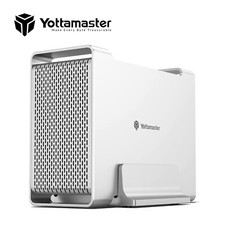
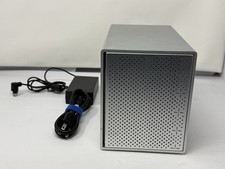
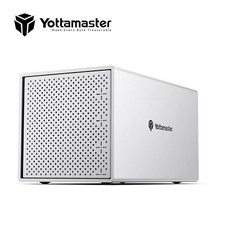
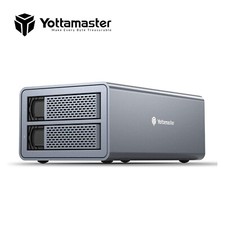
- 【2 x 18 TB Family & Business Storage Solution】This dual bay hard drive enclosure supports 2 hard drives with a maximum capacity of 32 TB and 16 TB for single disk. With two indicator lights to monitor the working status of each hard drive. Plug-and-play hot swapping. Perfect for memory-intensive applications like audio / video editing or digital photography.
- 【For 2.5"/3.5" SATA HDD & SSD】Yottamaster 2 bay hdd enclosure designed for both 2.5 inch SATA and 3.5 inch SATA HDD/SSDs. Its removable aluminum trays facilitate easy installation and replacement of drives. The included screws securely fix the hard drives to the trays, effectively protecting them from shock and interface damage.
- 【6Gbps Transfer Speed】This 2 bay enclosure adopt SATA III protocol, transfer rate up to 6Gbps (MAX). 20% faster than conventional USB 3.0. Compatible with most Windows and Mac systems. Meanwhile supports 10mins Intelligent Sleep(Note: The Auto-sleep time can be adjusted/canceled.)
- 【Dual-Core Chip & 150W Power Supply】The 2-bay USB 3.0 SATA hard drive enclosure features a dual-core chip and a 150W power supply, providing ample power for larger capacity hard drives. On average, 18TB enterprise-class hard drives consume around 10-12 watts of power during active operation. Powerful 150W power supply supports larger capacity hard drives and guarantees the safety and stability of data storage and transfer.
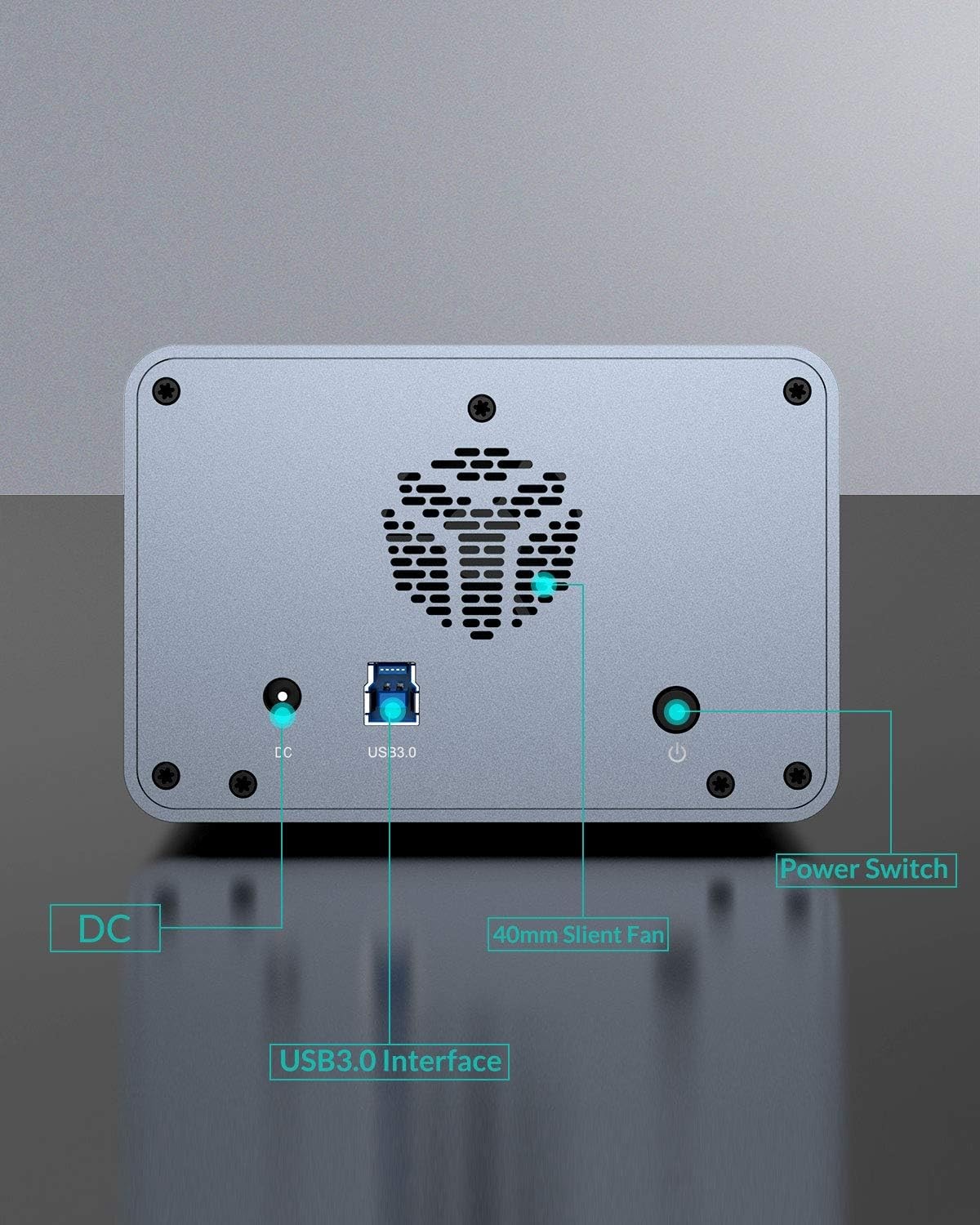
- 【Aluminum-Alloy Enclosure & 40mm Silent Fan】The 2-bay USB 3.0 SATA hard drive enclosure boasts a sleek aluminum-alloy shell and an intelligent temperature control fan, providing optimal cooling with low noise. The fan adjusts its speed automatically based on the hard drive's temperature. With front and rear cooling holes, this enclosure ensures efficient heat dissipation and promotes air convection, effectively keeping your drives cool during extended usage.
- 【Important Note】This model FS2U3 is a non-RAID version and does not support hardware RAID. If you wish to set up RAID, you can only set up software RAID with the tools in your system. For instance, Mac OS users can utilize the RAID Assistant in Disk Utility. The RAID software provided on the official website is compatible with RAID version enclosures only.
FS2RU3 is a DAS, and support Hardware RAID
- Supporting up to 2 hard disk drives, with each drive supporting a maximum of 18TB, the total capacity can reach up to 36TB, allowing you to easily expand storage capacity and freely manage and organize your data.
- Compatible with 2.5" or 3.5" SATA HDD/SSD (hard drives not included).
- Support hardware RAID including RAID 1, JBOD(SPAN), allowing you to choose high performance, data redundancy, or flexible storage configurations as per your requirements.
- With a USB 3.0 Type-B interface, it offers fast 5Gbps data transfer speeds for efficient file transfers and backups.
- It is user-friendly, requiring no additional software or drivers.
- The DAS enclosure is made of high-quality aluminum alloy material with metal hard-drive mounting trays, ensuring reliability, heat dissipation, and data protection.
- An integrated 40mm fan further enhances airflow for optimal heat dissipation.
How to setting Up and Changing RAID
NOTE: Please back up your data from the hard drives before proceeding.
via the RAID Switch on the FS2RU3's Back
Step 1: Before assembling RAID, ensure that the RAID switch on the back of the product is set to the PM/Normal mode. If the product is not in this mode, restore it to the PM mode. (If the product is already in PM mode, skip this step.)
- Power off the product and switch the RAID control switch on the back to the "PM mode" position.
- Hold down the "SET" button while powering on the product. Wait for 10 seconds until the LED lights up and a beep sound is emitted. Finally, release the "SET" button to complete the PM mode configuration.
Step 2: With the product in PM mode, power off the device and switch the RAID control switch to the desired RAID mode.
Step 3: Hold down the "SET" button while powering on the product. Wait for 10 seconds until the LED lights up and a beep sound is emitted. Finally, release the "SET" button to complete the RAID configuration.
Step 4: Format the disk array. Please access the "Disk Management" menu on Windows computers or the "Disk Utility" menu on Mac computers to format the disk array. Once the formatting is complete, the DR2RC3 das is ready for use.
On Sep 1, 2026 at 02:24:42 PDT, seller added the following information: