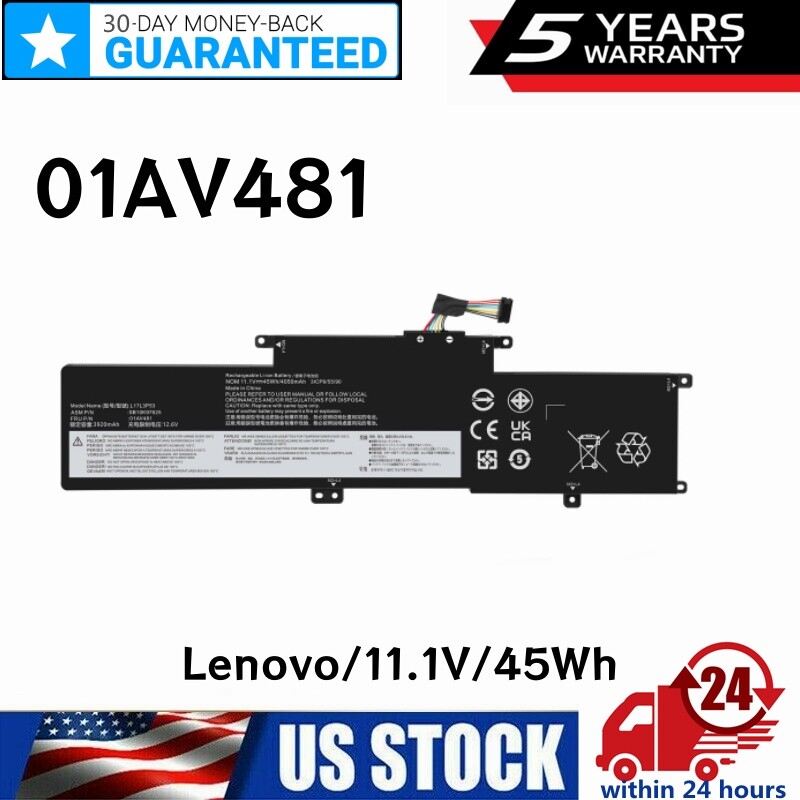
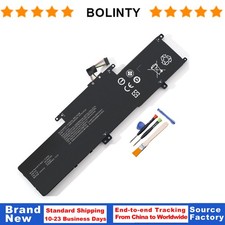
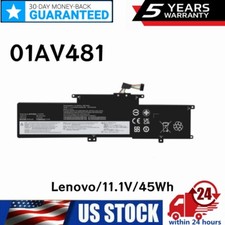
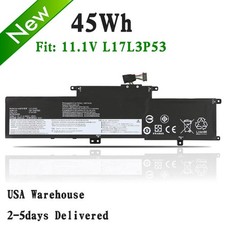
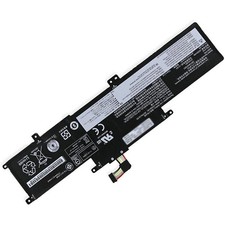
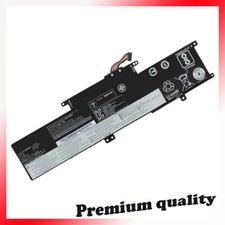
L17L3P53 01AV483 01AV481 Battery for
Lenovo ThinkPad L380 L390 Yoga
L17M3P55To ensure that the battery
is suitable for your laptop,please
open your laptop case, check
and confirm your original battery
model and appearance, compared with
our battery image, make sure
that's what you need. Especially
the location of the connector
and the cable length (long
or short) Specification:Battery type:Li-ionVoltage:11.1 VCapacity:45WhCells:3cellrecharge cycles:
500Operation time: Around 1-3hoursReplace Part
Number:L17L3P53 L17M3P55 L17C3P5301AV483 01AV481 01AV482SB10K97626
SB10K97627 SB10K97625Compatible Models:For Lenovo ThinkPad
L380 SeriesFor Lenovo ThinkPad L380
Yoga SeriesFor Lenovo ThinkPad L390
SeriesFor Lenovo ThinkPad L390 Yoga
Series How to confirm that the
battery is suitable for your
laptop?Method 1: Use System Information
to find your laptop modelStep
1: Press Windows + R
to open Run window.Step 2:
Input "msinfo32" in the empty
box and click OK to
open System Information.Step 3: Keep
in the System Summary section,
and you will find the
System Model item in the
right pane.Method 2: Remove Battery
from Laptop to find your
laptop battery part numberStep 1:
Switch off the laptop and
unplug the power cable in
case of electric shockStep 2:
Remove the back panel with
the screwdriver. You should to
this with care avoiding any
harm to the laptop components.Step
3: Disconnect the cable connected
to the battery and then
take out the battery. After
that, you can check the
specifications of your battery. Install A
New Battery:You need to turn
off your laptop and disconnect
the power.Disconnect the connection between
the old battery and the
motherboard to avoid unnecessary damage
caused by disassembling the battery.
Then unscrew the old battery
screws one by one and
carefully save each screw.Remove the
old battery, carefully install the
new battery on the battery
case, screw in the screw,
and connect the wiring of
the new battery.If you don't
understand the above steps, you
can search for the video
about laptop battery installation on
YouTube. Maybe it will help
youLaptop Battery Instructions:Discharge the new
battery to 10% (not 0%),
then charge(100%) and cycle 3-5
times to wake up the
new battery.It can calibrate the
state of the battery by
performing a complete and effective
charging and discharging of the
battery once a month.Charge it
to around 50% when you
store it long term.Do not
keep your battery below 5%
or deep discharge state (long
time 0%), may turn on
battery protection and cause the
battery to fail to charge.Please
feel welcomed to notify us
of any inconvenience or fault
in our battery.The following are
troubleshooting methods:Turn off the laptop.Unplug
AC power.Remove the battery.Replace AC
power.Turn on laptop,allow OS to
boot.Once logged into the machine,
perform a normal shut down.Unplug
AC power.Replace battery. PaymentDelivery detailsReturn PolicyAbout
usWarranty PolicyPayment 1.We accept payment via
PayPal, Visa, Mastercard, Apple Pay,
Google Pay etc.2. All payments
must be prepaid. Delivery details 1. Items
are generally shipped out within
24 hours after your payment
has been cleared (Sat. &
Sun. excluded.)2. Orders from the
United States will all be
shipped out via USPS/Fedex. The
shipment usually takes 1-4 business
days( Exclude public holiday), if
you need the item urgently,
p