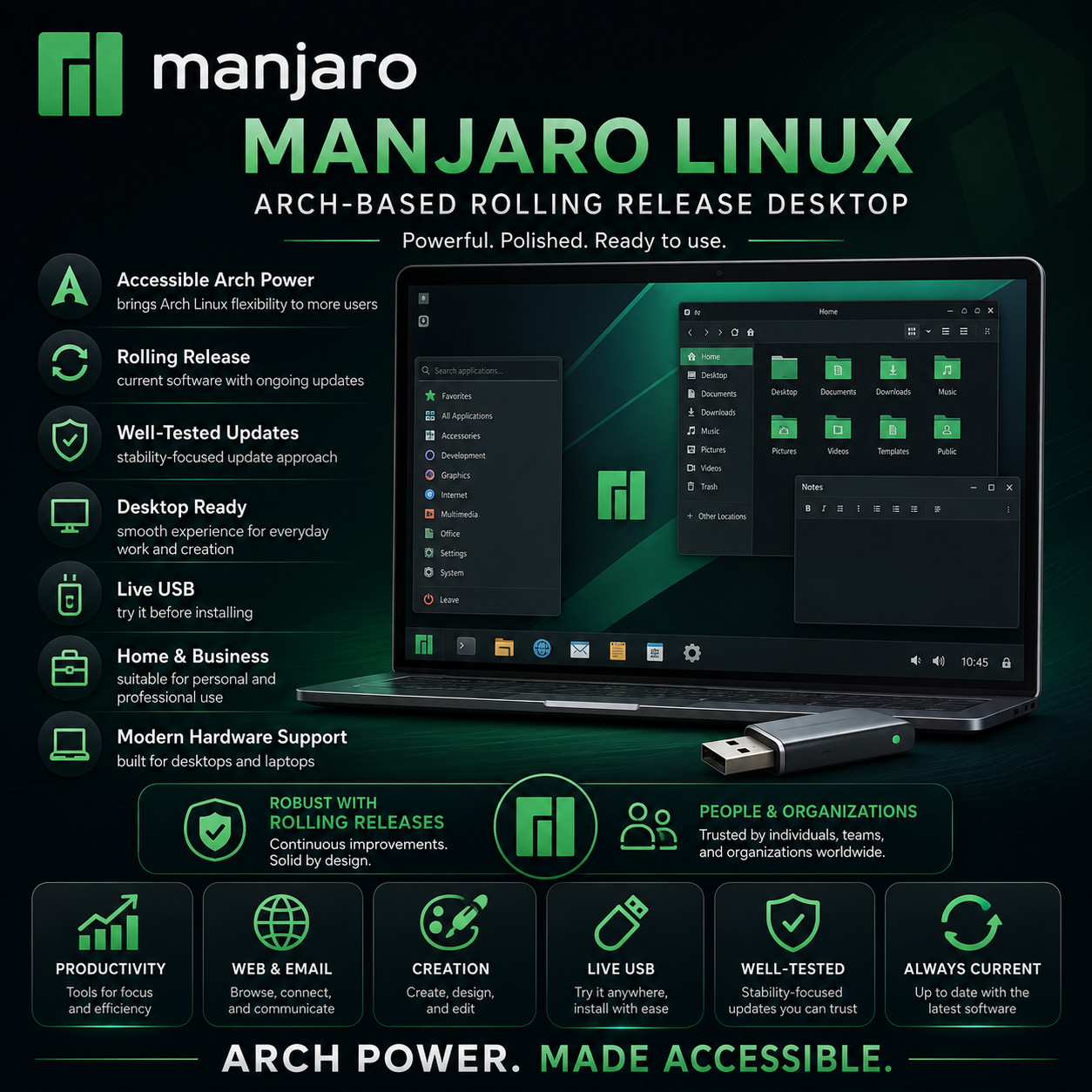
Arch-Based Rolling Release Desktop Manjaro Linux BOOT · TRY · INSTALL · ENJOY All the power, without the homework — your computer set up and ready on day one. Try It Before Installing 3 Desktops On One USB Drivers Sorted For You Always Up To Date Three desktops, one drive · KDE, Xfce and GNOME all included — pick one from the menu each time you start up. Try It Without Changing Anything Plug the USB in and the whole desktop runs straight from the drive — open the web browser, play some music, see how it feels. Nothing on your hard drive is touched until you decide to install. Take the USB out, restart, and your computer is exactly as it was.
Manjaro is a Linux desktop built to be easy to live with. It is based on Arch Linux — one of the most powerful and flexible systems there is, and one with a reputation for being hard work to set up — and it does all of that awkward part for you: it works out what hardware you have and sets up the right graphics drivers by itself, it puts the settings you might actually want to change into plain, clickable screens instead of hidden text files, and it gives you one place to search for and install any program you need. You get a computer that is quick, quiet, private and completely yours — and one that keeps itself current instead of asking you to reinstall it every year or two.
Why This Edition Stands Out 💾 Plug-in-and-boot ready USB Written, tested and verified before shipping. No downloading, no special software to learn — plug it in, restart, and pick it from the boot menu. 🎨 All three desktops included KDE, Xfce and GNOME are all on the drive. Choose one from a menu when you start it up, try another next time, and settle on whichever you like — no second purchase, no reflashing. 🔍 Try it before you commit The live session runs the full desktop from the drive, so you can check your wifi, sound, screen and printer all behave on your actual computer before anything changes. 🔧 Drivers handled automatically Manjaro looks at your machine during setup and installs the right graphics and hardware drivers itself. This is the step that usually trips people up, and it is simply done for you. 📚 Step-by-step PDF setup guide A screenshot-driven "Read Me First" guide ships on the drive — boot-menu keys for the major laptop brands, the live session, and the whole install walked through screen by screen. 🚀 Always the latest release The media is rebuilt as new versions ship — you receive the current release at order time, not a years-old copy sitting on a shelf. Three desktops, all on the drive
All three are on your USB. When you start it up you choose which one to load, so you can spend an evening in each and keep the one that suits you. They run the same Manjaro underneath — same programs, same settings, same updates — so the only thing that changes is how it looks and feels to use.
🖥️ KDE — the full-featured one A taskbar along the bottom, a start button in the corner, and icons on the desktop — familiar from the first second. It is also the most adjustable of the three, so if you enjoy moving things around and making the computer look exactly how you want, this is the one that rewards it. A good default choice for most people. 🪶 Xfce — the light and quick one Laid out much like KDE, but deliberately simple and sparing with your computer's memory and processor. It is the one to pick for a laptop that has been feeling tired, or whenever you would rather the machine spent its energy on your work than on animations. Rock steady and very fast. ✨ GNOME — the clean, modern one A different approach: a clear, uncluttered screen where you press one key to see everything you have open and start typing to find what you want. It takes a few minutes to click, and then a lot of people never go back. Especially nice on a laptop with a touchpad or a touchscreen. What makes it easy to live with 🔧 It works out your hardware for you Manjaro checks what is inside your computer and fits the right graphics drivers automatically. If you ever want to change them, there is a window where you can see what is installed and swap it over — no typing commands, no hunting through websites for a download that matches your card. 🛒 One place to get any program you need Open the software window, type what you are after, press install. It reaches an enormous collection of programs — office suites, photo editors, games, music software, video tools, and the community collection where almost everything else lives. No downloading installers from random websites and hoping they are safe. ⚙️ The important settings, in plain sight A single settings centre covers your language, your user accounts, the date and time, your graphics drivers, and even which version of the system's core software you are running — each on a normal screen with buttons. Things that on other systems mean editing files by hand are a couple of clicks here. 🔄 Up to date, without the reinstall day New versions of your programs and of the system itself arrive as ordinary updates you accept when convenient. There is no numbered upgrade to dread and nothing to reinstall — the computer you set up today simply keeps becoming the current one. Updates are held back and tested first, so you get new software that has already been through its shakedown. 🏢 A real company behind it, and a big community Manjaro is backed by an actual company that also sells support to businesses, which is unusual and means the project has proper resources behind it. Alongside that sits a large, long-running user forum and a detailed help site, so when you have a question there is almost always an answer already written. 🔐 Quiet, private and yours No advertising built into the desktop, nothing tracking what you open, and no account to sign into before your own computer will let you work. It starts quickly, stays out of your way, and does what you asked it to do. Plus more inside 🧭 Point-and-click installer A friendly installer walks you through language, keyboard, time zone, disk and account in a handful of clear screens. No commands to type at any point. 🧬 Recent hardware supported A current system core means newer processors, graphics chips, wifi adapters and laptops are recognised properly rather than left half-working. 🧑💻 Keep it alongside what you have The installer can set Manjaro up next to the system already on the machine, so you pick which one to start each time and move across at your own pace. 🛟 Handy when a computer won't start Because the live session is a complete working desktop, it is a practical way to read a drive and copy important files off a machine whose own system has stopped booting. 🖨️ Printing and devices Printers, scanners, drawing tablets, Bluetooth and shared network folders are all catered for, with guides on the project's help site for the fiddlier ones. 🔋 Better battery on laptops Power settings are there to tune how the machine behaves on battery, which many people find gives an older laptop noticeably longer between charges. 🌍 Works in your language Choose your language and keyboard layout during setup and the whole desktop follows, with spell checking to match. 🔑 No product key, no activation Nothing to type in, no account needed before you can use your own computer, and no limit on how many of your machines you put it on. Who it's for 🌱 First-time Linux users The parts that usually put people off — drivers, finding software, updating — are the parts Manjaro handles for you. Try it from the USB first and see for yourself. 💻 Laptops that feel slow A machine that takes an age to start is often good hardware weighed down. The Xfce version in particular gives a tired laptop a real second wind. 🏠 Everyday home computing Browsing, email, documents, photos, music and video calls — all there and working, on a desktop with no adverts and nothing watching over your shoulder. 🔧 People who like to tinker Everything is adjustable if you want it to be, with an enormous software collection and a helpful community — but nothing is broken if you would rather leave it alone. What you receive in the mail
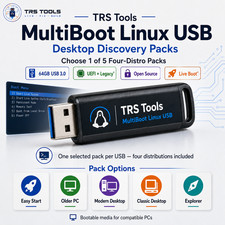
1 × USB flash drive preloaded with the current Manjaro release — bootable as a live session you can try and as a full installer - All three desktops on the one drive — KDE, Xfce and GNOME. A menu appears when you start up and you pick which to load, so you can try each of them and install whichever you prefer.
- Step-by-step setup guide with screenshots — open the "Read Me First" PDF on the drive
- Quick reference card — boot-menu keys for the major laptop brands and a one-page tour of your new desktop
Compatibility Requirement Supported Computer Either a 64-bit Intel or AMD PC or laptop — practically everything built in the last fifteen years — or an ARM single-board computer such as a Raspberry Pi or Pinebook. Choose the version you need at checkout. Memory 4 GB of RAM is a comfortable starting point. Xfce is the happiest of the three on machines with less to spare. Storage Around 30 GB of disk space suits an installation with plenty of room for your files. Nothing is written to your disk if you only run the live session. Display 1024 × 768 or higher, including modern high-resolution laptop screens Firmware UEFI systems. The included guide covers the firmware settings worth checking before you boot the drive. Internet Not needed to boot the live session or to install. Recommended afterwards so you can take updates and add more programs. Drive A USB port How it works (3 steps) 1 Plug in & start up Insert the USB, restart the computer, and choose it from the boot menu. The included guide lists the right key for each laptop brand. 2 Have a proper look round Pick KDE, Xfce or GNOME from the menu and the full desktop runs from the USB. Open the browser, play a video, check the wifi and the printer — all without touching your hard drive. Restart and pick a different one whenever you like. 3 Install it when you're ready Click the installer on the desktop and follow a few simple screens — keep your current system alongside it, or give Manjaro the whole machine. Owned, not rented No product key. No activation. No subscription, and no account to create before your own computer will let you work. Put it on as many machines as you like, keep using it for as long as the hardware lasts, and take the updates the project publishes at no cost — they arrive as ordinary updates rather than a new version you have to buy. Frequently asked questions 🎨 Which desktop should I use? All three are on the drive, so you do not have to decide before buying — try them and see. If you would like a starting point: KDE looks and works the way most people already expect a computer to and is the most adjustable; Xfce is the quickest and lightest, and the one to try first on an older machine; GNOME gives you a clean, uncluttered screen and a slightly different way of moving around that many people come to prefer. 💾 What's on the USB? The current Manjaro release with all three desktops — KDE, Xfce and GNOME — each bootable as a live session you can try and as a full installer, plus a step-by-step PDF setup guide and a one-page quick-reference card. 🛟 Will this change what's already on my computer? Only when you choose to. Booting the USB and using the live desktop leaves your hard drive completely untouched. When you do install, the installer asks whether to keep your existing system alongside Manjaro or use the whole disk, and tells you plainly which you have picked. Back your important files up first, as you would before installing any operating system. 📄 Can I open documents people send me? Yes. A full office suite that opens and saves the usual document, spreadsheet and presentation formats is a couple of clicks away in the software window, and web-based document tools work in the browser exactly as they do now. 🛒 How do I install programs? Open the software window, type the name of what you want, and click install. It searches an enormous collection covering office software, photo and video editing, music, games, development tools and much more — all from one place, with updates handled the same way. 🔄 How do updates work? A notification appears when updates are ready and you install them when it suits you. New versions arrive this way too, so there is no separate upgrade to buy and nothing to reinstall. Manjaro holds new software back for testing before passing it on, so what reaches you has already been through its paces. 🔧 What about my graphics card and printer? Manjaro detects your hardware and sets up the right graphics drivers by itself, and there is a settings window where you can see and change them later. Printers and scanners are added through a simple settings page. Trying the live session first is the surest way to see it all working on your own machine. 💻 Can I use it on more than one computer? Yes — boot it and install it on as many machines as you own. There are no activation limits of any kind. 🔑 Does it need a product key, activation, or account? No. There is no product key, no activation, and no account registration required to install or use the desktop. 🔁 Do future updates cost anything? No. The project publishes updates at no cost — you can keep the system current for as long as you want to. 📦 We ship as soon as paid Plug it in. Try it. Keep it. All the power, without the homework. Have a question? Please do not hesitate to message us before purchasing.
This listing is for professionally prepared physical media. Your USB arrives preloaded with the operating system, setup guide, and quick-reference card, ready to use. You are paying for the prepared media and the sourcing, organisation, packaging, and shipping that goes into it, not for software licenses.
Condition: brand new prepared USB drive. Professionally assembled, tested, and verified before shipping.
Important notes: this is a prepared physical USB device. Includes software released under its applicable licenses, prepared and organised for ease of installation. No product keys or paid software licenses are included or required to use the software. For use on systems you own or are authorized to service. Installing an operating system can overwrite existing data — please back up anything important before you begin. The purchase price reflects the cost of the prepared media, the sourcing and organisation of the contents, packaging, and shipping, not a license to the underlying software. Only items shown or described are included.