LINUX MINT 19.3 TRICIA OS 32-BIT & 64-BIT
LATEST BUILDS ISO⬇ Checkout 24-in-1 Linux Master Collection
➡️CLICK FOR 24-in-1 MASTER LINUX USBWhat is Linux Mint TRICIA OS?
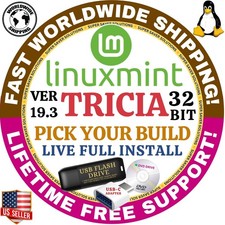
Linux Mint 19.3 “Tricia” is a user-friendly Linux operating system based on Ubuntu 18.04 LTS. It offers a stable, lightweight 32-BIT desktop with Cinnamon, MATE, and XFCE environments. Known for its simplicity and reliability, Tricia was the final Linux Mint release supporting some older hardware and provided improved system tools and performance enhancements.
✅ WHO SHOULD BUY THIS KIT?
This installer kit is perfect for anyone looking for a reliable installation media for Linux Mint 19.3 “Tricia.” It is ideal if you are searching for any of the following:
• Linux Mint 19.3 Tricia bootable USB
• Linux Mint 19.3 Tricia bootable DVD
• Linux Mint 19.3 Tricia installer USB or installer DVD
• Linux Mint 19.3 Tricia USB/DVD installer kit
• Linux Mint 19.3 Tricia install USB drive or install DVD disc
• Linux Mint 19.3 Tricia live USB or live DVD installer
• Linux Mint 19.3 Tricia Cinnamon, XFCE, or MATE installer
• Linux Mint 19.3 Tricia desktop operating system installer
• Linux Mint 19.3 Tricia operating system installation media
• Linux Mint 19.3 Tricia OS install media (USB or DVD)
Perfect for users who want a stable, user-friendly Linux operating system for desktops or laptops, system recovery, testing Linux without installing, or setting up a fresh Linux environment.
⬇ Checkout 24-in-1 Linux Master Collection
🔗CLICK FOR 24-in-1 MASTER LINUX USB
☑️HOW TO BOOT LINUX OS FROM USB OR DVD?
✅STEPS FOR WINDOWS PC & CHROMEBOOKS
1.Turn-off your computer
2.Insert the USB/DVD into any available USB port/DVD drive.
3.Switch on your computer
4.Press the key that allows your computer to boot to an alternate device (ESC on many HPs, F12 on many Dells, F8 on many custom builds, yours may vary, see your computer's documentation)
5.At the Book-up screen, select Boot from USB Interface or Boot from DVD option, press enter.
6.Wait for OS to load, then follow on-screen links for initiate OS.
7.Wait for system to boot into Linux OS.Done!Enjoy!
✅STEP FOR APPLE MACS DEVICES
1.Turn-off your computer
2.Insert the USB into any available USB port
3.Switch on your computer
4.Press the Option keyon your keyboard to go the boot menu
5.Select EFI Book
6.Follow on-screen links for initiate OS.
7.Wait for system to boot into Linux OS. Done! Enjoy!