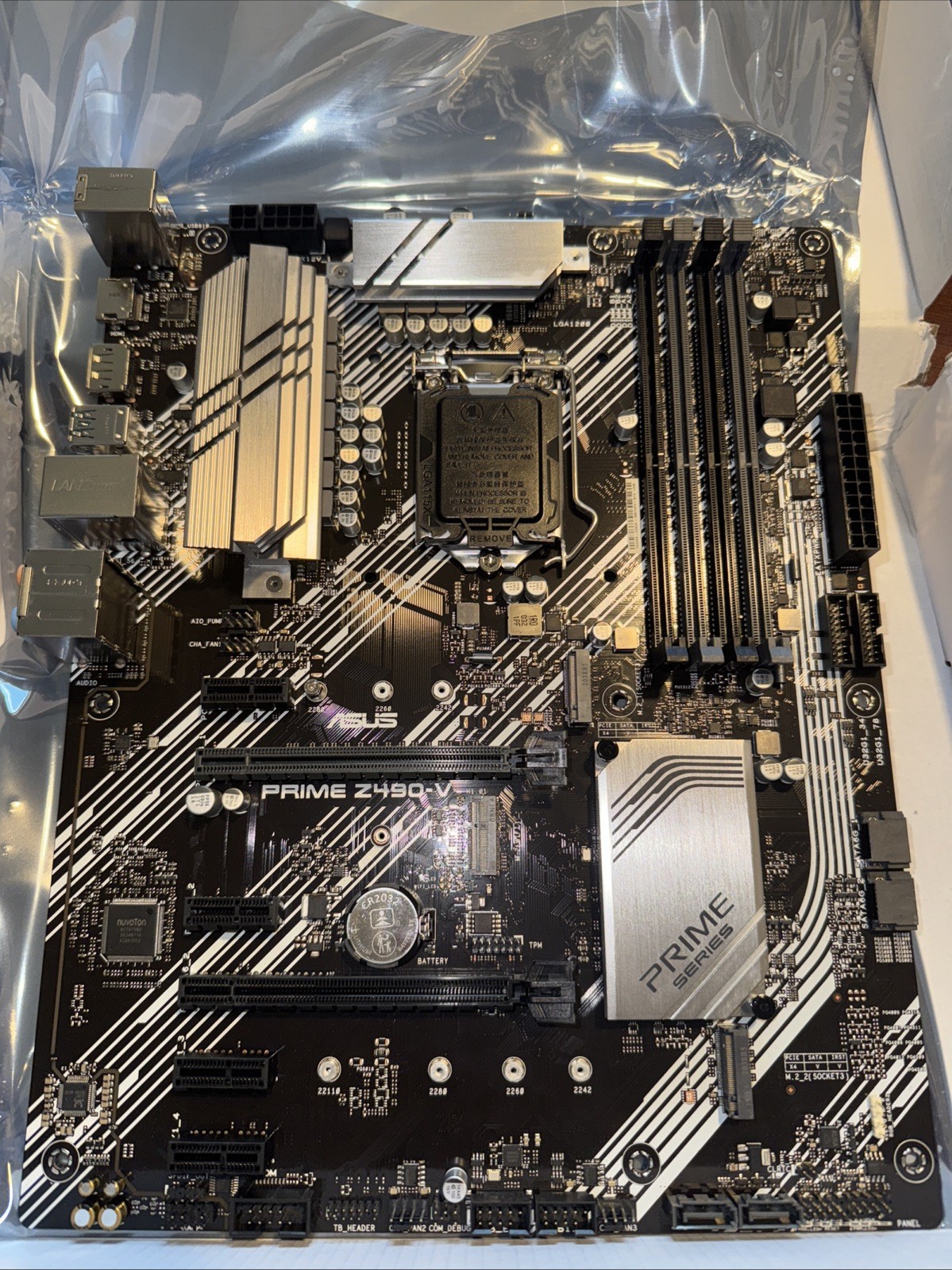
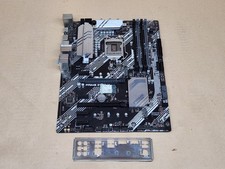
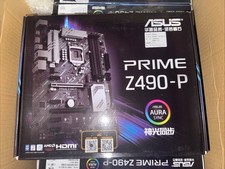
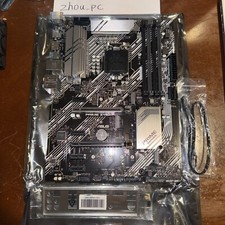
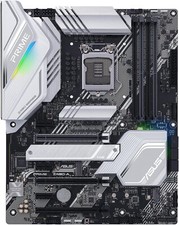
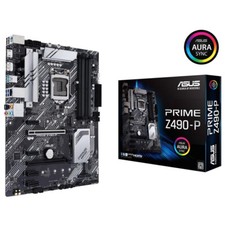
Intel 10th Gen supported
Before installing the CPU, please carefully check for bent CPU pins. Bent pins are a common cause of no-POST or dead motherboards, and many users are unaware the damage occurred. Insert the CPU gently to avoid damage.
An I/O shield is included.
Please handle the CPU installation with care, as the CPU pins are delicate and can bend easily. Bent pins will void the return policy
Step-by-step trouble shoot if the board won't boot:
Before troubleshooting, please check whether any CPU pins are bent. Pins can sometimes bend during CPU installation and cause the system not to boot.1) Basic power checks
- Make sure the power supply switch (on the PSU) is ON and the power cable is fully seated.
- Confirm the wall outlet or power strip works (try another device or a different outlet).
- Ensure the 24-pin ATX and 8/4-pin CPU power connectors are firmly plugged into the motherboard.
2) Minimal (barebones) boot the single most effective test
- Remove all non-essential components: extra drives, extra PCIe cards, RGB hubs, USB devices.
- Leave only: CPU (with cooler), 1 RAM stick in the slot recommended by the motherboard manual, power supply, and monitor (if needed).
- Try to power on. If it boots, add one component at a time to find the faulty part.
3) RAM checks (very common cause)
- Reseat RAM: remove sticks and firmly reseat them until the latches click.
- Try one RAM stick at a time in the primary slot (usually labeled DIMM_A2 check your manual).
- If one stick fails but another works, the failing stick may be bad or incompatible.
4) Clear CMOS / Reset BIOS
- Locate the CMOS jumper (or remove the coin-cell battery) and follow the manual instructions to clear CMOS usually move the jumper for a few seconds or remove the battery for ~30 seconds.
- Reinstall battery/jumper and try to boot.
- This resets BIOS settings (useful if an overclock or wrong settings are stopping boot).
5) CPU / cooler / seating checks
- Double-check the CPU is seated properly and the cooler is installed (loose cooler can prevent proper contact).
- Inspect the CPU socket for bent pins (carefully, with good light).
- Reinstall the CPU only if you’re comfortable doing so ——— otherwise advise the buyer to seek local tech help.
6) GPU / display checks
- If your CPU has onboard video, remove the discrete GPU and display from the motherboard’s video outputs to rule out GPU issues.
- Confirm the monitor and cable work (try another cable/monitor if available).
7) Look at motherboard status indicators
- Many boards have Q-LEDs, POST LEDs, or a debug code display. Note which LED lights (CPU, DRAM, VGA, BOOT) or any beep codes and share them with the seller.
- If the board has a speaker header, attaching a small speaker will give beep codes that help diagnosis.
8) Power supply check
- If possible, test with another known-good PSU. Some no boot issues are caused by weak or failing PSUs that can power fans but not boot the system.
9) Firmware (BIOS) note
- If the board is an older BIOS and you have a new CPU, it may require a BIOS update. BIOS updates carry some risk; do not attempt unless you are comfortable or have a compatible CPU available. Contact the seller if you suspect this.
10) What to send the seller if you need help / a return
When contacting the seller, include:
- Order number and motherboard model.
- Photos: full board, CPU socket area, power connectors attached.
- Which troubleshooting steps you already tried (especially whether one-stick RAM or CMOS clear worked or not).
- CPU/RAM model used (helps diagnose compatibility issue).
Safety & warranty note
- Do not attempt advanced repairs (e.g., micro-soldering) if you’re not experienced.
- If the board is DOA after following these steps, open a return request and include the items above this helps speed up your replacement/refund.