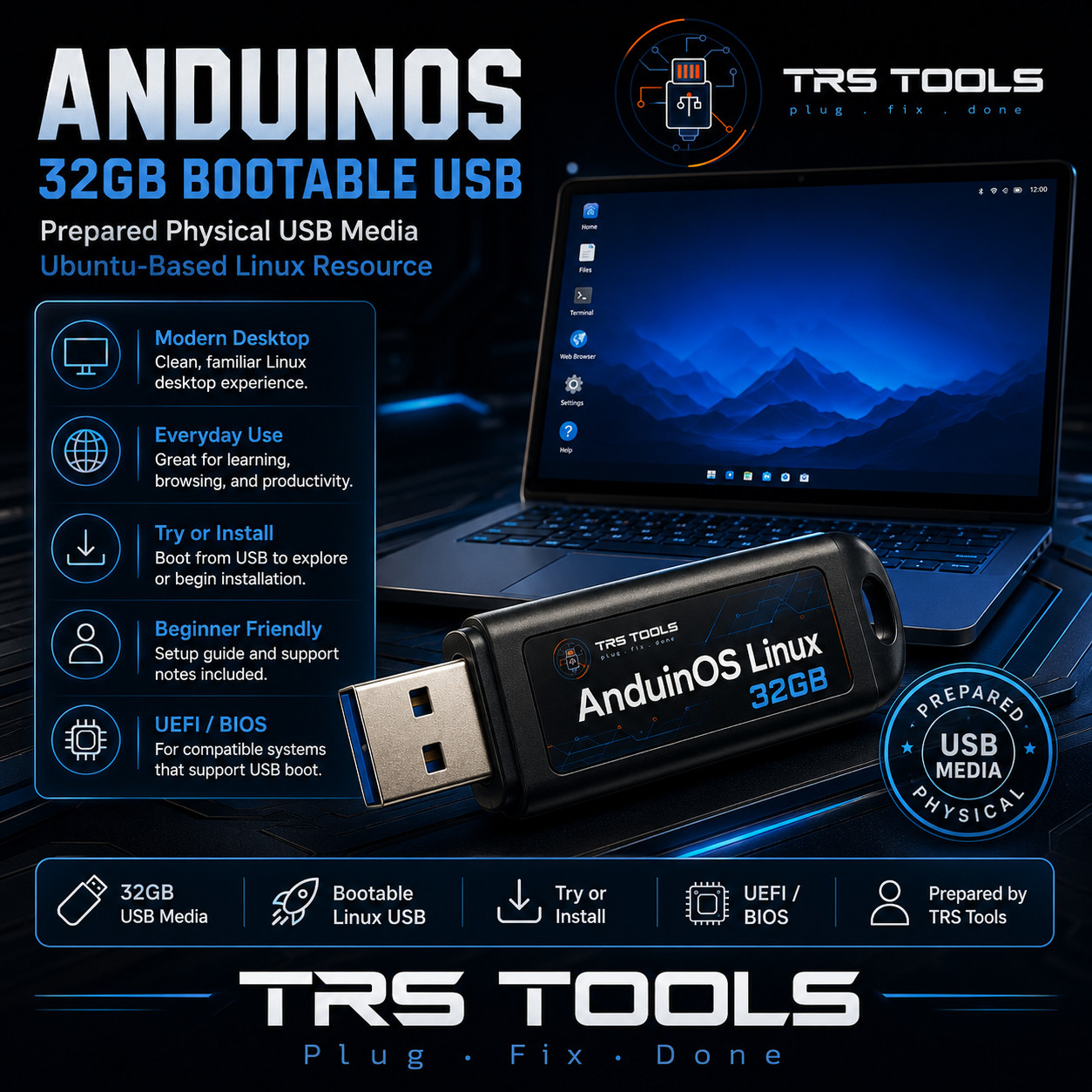
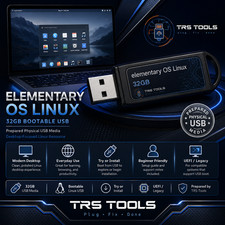
AnduinOS Linux Bootable USB - Prepared 32GB Physical Media
A clean TRS Tools prepared USB for exploring AnduinOS Linux on compatible computers that support USB boot.
What You Will Receive
- 1 prepared 32GB USB flash drive with AnduinOS Linux boot media
- Setup guide notes for starting from USB
- Support notes with basic boot tips and compatibility reminders
- Compatibility reference for common USB boot menu and firmware settings
- TRS Tools preparation, organization, and basic boot-focused media check
Important: This listing is for prepared physical USB media, setup notes, support notes, and convenience. No license, activation key, paid subscription, account access, official support entitlement, or proprietary software ownership is included. Key Features Prepared Physical USB Media
USB media prepared by TRS Tools for Linux boot use on compatible systems. AnduinOS Linux Resource
Useful for learning, desktop exploration, compatibility testing, or starting a Linux installation. Setup Guide Included
Simple notes for opening your computer boot menu and selecting the USB device. Support Notes Included
Helpful reminders for UEFI, BIOS boot, USB port selection, and common startup issues. Ubuntu-Based Linux Experience
AnduinOS is designed as a familiar desktop-focused Linux system using Ubuntu package foundations. For Authorized Systems
Use only on computers you own or are authorized to service. Compatibility Notes
This USB is intended for compatible x86_64 computers that support booting from USB media. Compatibility depends on your computer hardware, firmware settings, graphics hardware, storage configuration, selected AnduinOS branch, network connection, and installation choices.
AnduinOS documentation lists support for UEFI or BIOS firmware, x86_64 architecture, and ACPI-compliant hardware. Secure Boot support is documented by the AnduinOS project, but actual behavior may still vary by system configuration.
Internet access may be needed for updates, additional packages, Flatpak resources, drivers, documentation, and online community resources after setup.
How to Boot Linux from USB?
- Shut down the computer completely.
- Insert the prepared TRS Tools AnduinOS Linux USB drive into a USB port.
- Power on the computer and immediately open the boot menu. Common keys include F12, F11, F10, Esc, or Del depending on the manufacturer.
- Select the USB device from the boot menu list.
- Allow the AnduinOS live or installer environment to load.
- Explore available options before making installation decisions.
- If installing, back up important files first and carefully follow the on-screen prompts and included notes.
Data Safety Reminder: Installing or changing an operating system can erase data if the wrong drive, partition, or setup option is selected. Always back up important files before making changes. Important Compliance Disclaimer
This item is sold as prepared physical USB media with setup notes and support information. Software resources are publicly available, community-provided, open-source, or redistributable where applicable. Some components may be governed by their own separate licenses.
No license or activation included. No paid software license, activation key, subscription, account, official support entitlement, or proprietary software ownership is included with this item.
TRS Tools is an independent seller and is not affiliated with, sponsored by, certified by, or endorsed by AnduinOS, Aiursoft, Ubuntu, Canonical, GNOME, Flatpak, or any referenced software publisher. Names and marks are used only for descriptive identification and compatibility reference.
Experience You Can Count On
Prepared by TRS Tools with 30 years of Information Technology experience. The value of this item is the physical USB media, preparation, organization, setup guidance, compatibility notes, and seller support.
FAQ 1. Is this an official AnduinOS product?
No. This is prepared physical USB media from TRS Tools. TRS Tools is an independent seller and is not affiliated with or endorsed by AnduinOS.
2. Does this include a software license or activation key?
No. No license, activation key, paid subscription, account, official support entitlement, or proprietary software ownership is included.
3. Can I try AnduinOS from the USB before installing?
On compatible systems, the USB may allow you to start the AnduinOS live or installer environment before deciding whether to install.
4. Will this work on every computer?
No compatibility is guaranteed. The computer must support USB boot and be compatible with the selected AnduinOS image, firmware settings, and hardware requirements.
5. Do I need internet access?
Internet access may be needed for updates, additional packages, Flatpak resources, drivers, documentation, and online resources after setup.
6. Will installing AnduinOS erase my files?
It can if the wrong drive, partition, or setup option is selected. Always back up important data before installing or changing operating systems.
7. What support is included?
TRS Tools provides basic support notes for booting from USB, common setup steps, and general compatibility guidance for the prepared media.
TRS Tools Support-Focused Closing
Thank you for choosing TRS Tools. This prepared AnduinOS Linux USB is made for convenience, Linux learning, desktop exploration, and installation preparation on compatible systems. Please review the included notes, back up important files, and contact us with basic media or boot questions.