🔥 SAVE BIG ON LINUX MEGA PACKS 🔥🛒 VISIT MY store LINK HERE 🛒
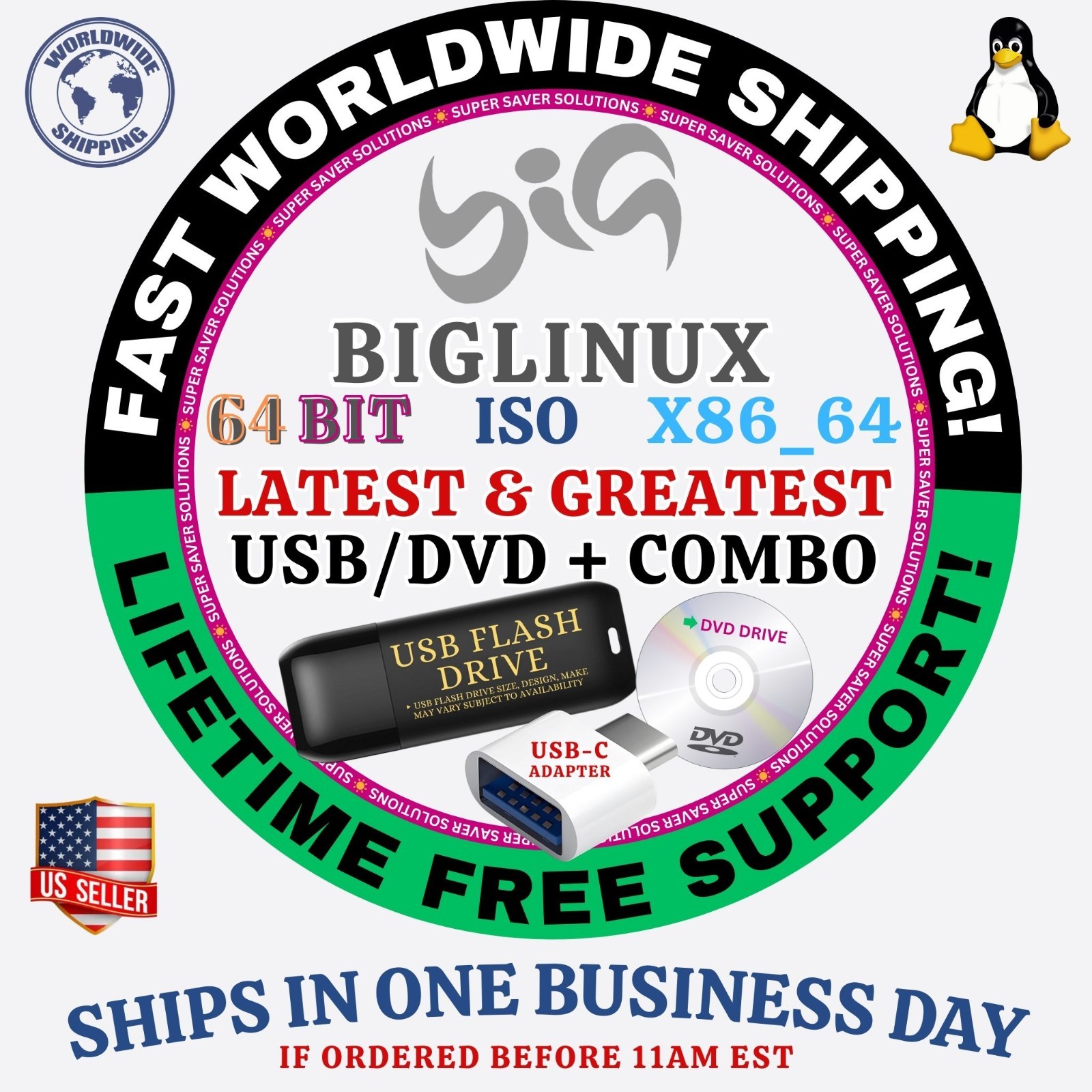
BIGLINUXOS
LATEST BUILDS CHECK DROPDOWN
🙂 GIVE A NEW LIFE TO YOUR DEVICE!PERFECT FOR OLD & NEW DEVICES!
64-Bit(Live Boot, Full Installation)Brand New Bootable USB & DVD Drive
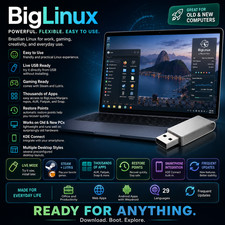
What is BigLinux OS?Easy to use! -BigLinux is the right choice if you want an easy and enriching experience with Linux. It has been perfected over more than 19 years, following our motto: “In search of the perfect system”.
Don't waste any more time and try BigLinux right now. You'll be amazed at how much it can empower you to do amazing things!
BUILD VERSIONSBUILD LATEST, BUILD KERNEL 66, BUILD KERNEL 612, BUILD KERNEL 614
MEDIA TYPESBOOTABLE DVD, BOOTABLE USB, USB + DVD COMBO
Give it a try. You’ll Love it!
✅ WHO SHOULD BUY THIS KIT?
This installer kit is ideal for anyone looking for reliable installation media for BigLinux. It is perfect if you are searching for any of the following:
• BigLinux bootable USB or bootable DVD
• BigLinux installer USB or installer DVD
• BigLinux USB/DVD installer kit
• BigLinux install USB drive or install DVD disc
• BigLinux live USB or live DVD installer
• BigLinux KDE Plasma desktop installer
• BigLinux Manjaro-based Linux installer
• BigLinux desktop operating system installer
• BigLinux operating system installation media
• BigLinux OS install media (USB or DVD)
This kit is perfect for users who want a modern, visually polished, and feature-rich Linux experience, ideal for everyday use, customization, testing Linux without installation, or setting up a fresh and powerful desktop environment.
⭐️ How to Boot Linux OS from USB?✅ Steps for Windows PC & Chromebooks
Follow these easy steps:
- Turn-off your computer
- Insert the USB into any available USB port
- Switch on your computer
- Press the key that allows your computer to boot to an alternate device (ESC on many HPs, F12 on many Dells, F8 on many custom builds, yours may vary, see your computer's documentation)
- At the Book-up screen, select Boot from USB Interface option, press enter.
- Follow on-screen links for initiate OS.
- Wait for system to boot into LinuxOS.
- That's it! Enjoy!
✅Step for Apple Macs Devices
Follow these easy steps:
- Turn-off your computer
- Insert the USB into any available USB port
- Switch on your computer
- Press the Option keyon your keyboard to go the boot menu
- Select EFI Book
- Follow on-screen links for initiate OS.
- Wait for system to boot into Linux OS.
- That's it! Enjoy!
⭐️LOOK AT MY AWESOME response, BUY WITH 100% CONFIDENCE!
🔥 SAVE BIG ON LINUX MEGA PACKS 🔥
🛒VISIT MY store LINK HERE🛒