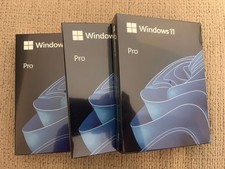
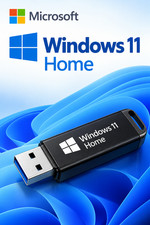
ONLY US Shipping!THIS IS EVAULATION VERSION NOT FULL LICENCED VERSION.
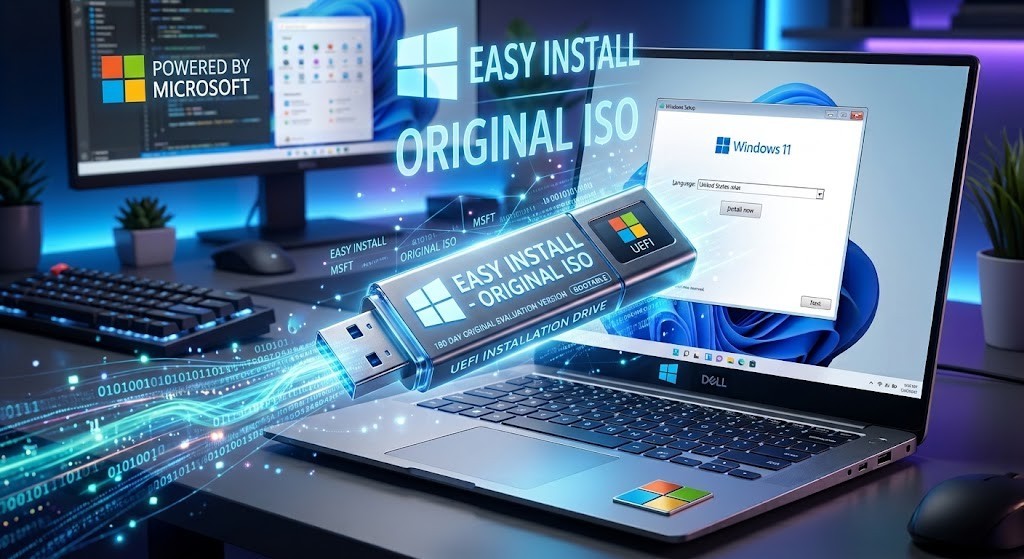
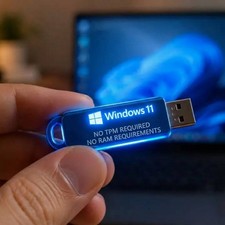
The product is a bootable Windows 11 USB drive specifically designed for laptops and PCs. The USB drive features a USB port interface, making it easy to use for reinstalling Windows on your device. This product is ideal for those looking to quickly and efficiently reinstall Windows 11 on their laptop.This is ORIGINAL 90-180 Day Evaulation Version. You can use 180 day if you want to renew use this command:OR you can buy Licence Key after Evaulation ends.1. Run PowerShell as AdministratorYou must execute these commands with elevated privileges. [1]
- Right-click the Start menu button.
- Select Terminal (Admin) or Windows PowerShell (Admin).
2. Check Your Current License StatusBefore extending, verify how many remaining "rearms" you have left. Run the following command: [1]powershellslmgr /dlvUse code with caution.A popup window will appear. Look for the Remaining Windows rearm count. If this number is 1 or higher, you can proceed with the reset. [1, 2]3. Execute the Renew CommandType the rearm command into PowerShell and press Enter:powershellslmgr /rearmUse code with caution.Note: Make sure your computer is connected to the internet, as Windows requires an online connection to re-verify the evaluation extension. [1]4. Restart Your ComputerAfter running the command, a dialog box will notify you that the command completed successfully and request a reboot. Restart your PC to apply the new timer. [1, 2, 3]Key Information to Keep in Mind
- Rearm Limits: Microsoft typically allows you to use the rearm command up to 3 to 6 times depending on the specific evaluation image you deployed. Once you run out of rearms, you will either need to reinstall Windows or upgrade to a full, licensed version.
- No Data Loss: Running this command resets the activation timer but will not erase your files, applications, or configurations. [1, 2, 3, 4, 5]
If you'd like, let me know:
- What error message you get (if the command fails)
- Whether you are using a standard Windows 11 Enterprise Evaluation or a Deployment Lab Kit
- If you want to know how to convert it to a permanent full license without losing data [1, 2, 3, 4]