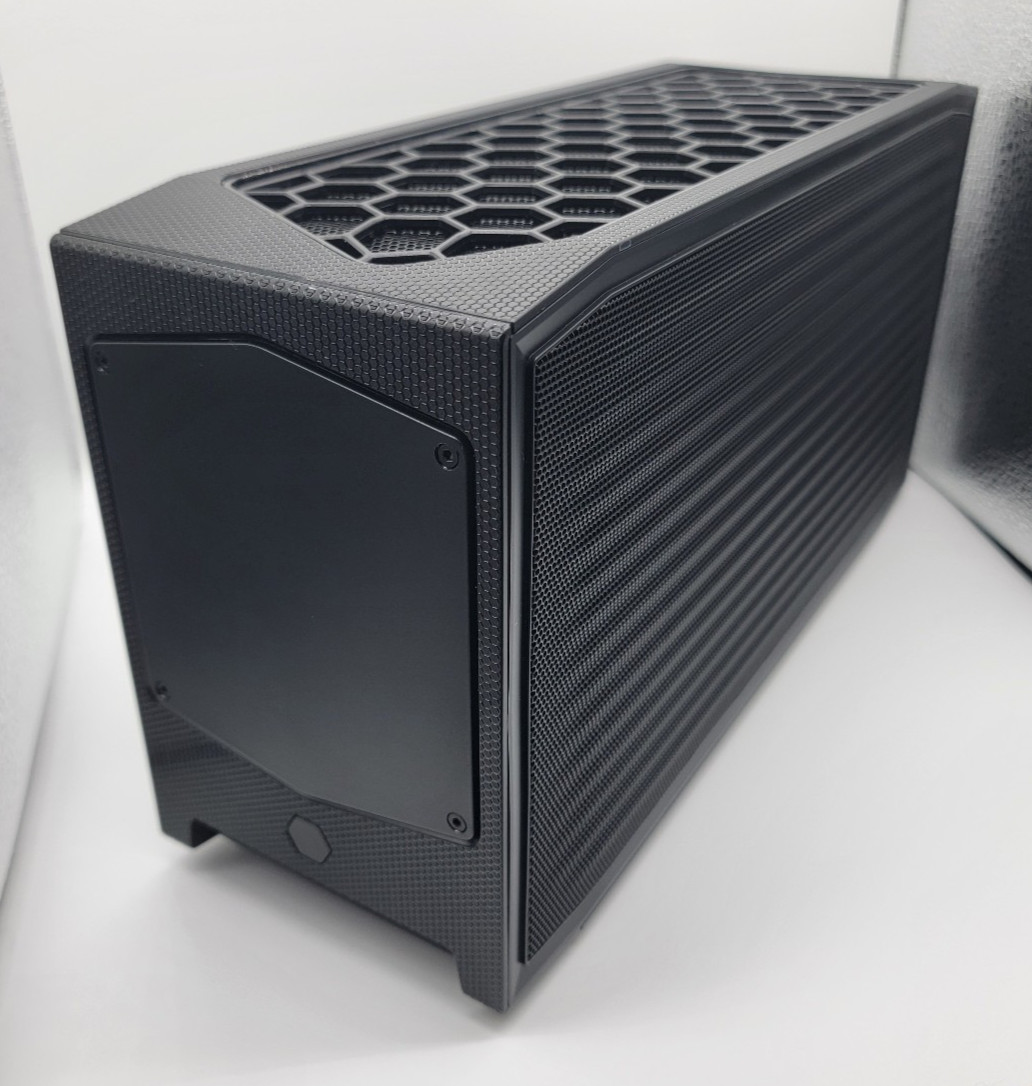
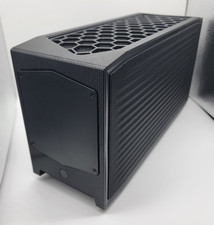
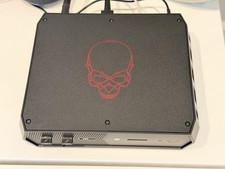
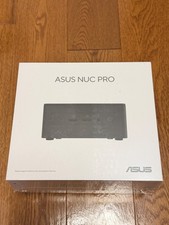
I got lucky and found this Intel NUC PC being sold for a good price at a local liquidation sale. It's in excellent condition and I was able to test it without any issues.
System Specs:
- CPU: Intel i7-12700 (65 watts)
- Memory: DDR4 1x16 GB 3200 MT/s SO-DIMM
- GPU: Intel UHD Graphics 770
- Chipset: Intel W680
- Storage: NVMe WD Blue SN580 500 GB
- Power supply: 650 watts
What's included:
- 1 SFF Intel NUC 12 Pro X with the hardware specs listed above
- 1 power cable
What's not included:
- Original packaging
- Product manual
As shown in the rear picture, two PCIE card slot covers are missing. This is because I took out the graphics card and I am selling it separately.The following ports were all tested and confirmed working:
- All UBS-A, front & rear
- All USB-C, front & rear
- HDMI
- SD card reader
- 3.5mm aux
- 10 Gb/s Ethernet
I was unable to get the 2.5 Gb/s Ethernet port working. I'm not sure if it's a driver or a hardware issue. The 10 Gb/s port works fine so it's not a problem as long as you don't have a specific use-case that requires both ports.I installed Windows 11 Home on the machine but it doesn't come with a license. You'll have to purchase a license from Microsoft separately if you plan on using Windows.If you plan on doing a completely fresh install of Windows, internet connectivity will not work until you install the LAN and wireless drivers during Windows setup via a USB flash drive. This step may be a difficult surprise for non-tech-savvy users. If you don't plan on doing a fresh install of Windows, I am shipping the PC with the drivers already installed for your convenience. Here are the steps to install the drivers in case you need it:1. On a separate computer, search for "NUC12DCMV7" fromthe ASUS support page.
2. Download the LAN and wireless drivers from the"Drivers & Tools" page.
3. Extract the downloaded ZIP files onto a USB flash drive.
4. Plug the flash drive into the NUC PC.
5. When you reach the "Let's connect you to a network" step during Windows setup, press SHIFT+F10 on your keyboard to bring up a terminal window.
6.To install drivers for a wired internet connection, run the command "pnputil /add-driver /install". To install drivers for a Wi-Fi internet connection, run the command "pnputil /add-driver /subdirs /install". You may need to adjust the paths in the commands to correctly match the drive letter and file paths of your USB flash drive.To reiterate, the above steps are only required when doing a fresh install of Windows. If you plan on using the Windows install that I am shipping the PC with, you can skip it.