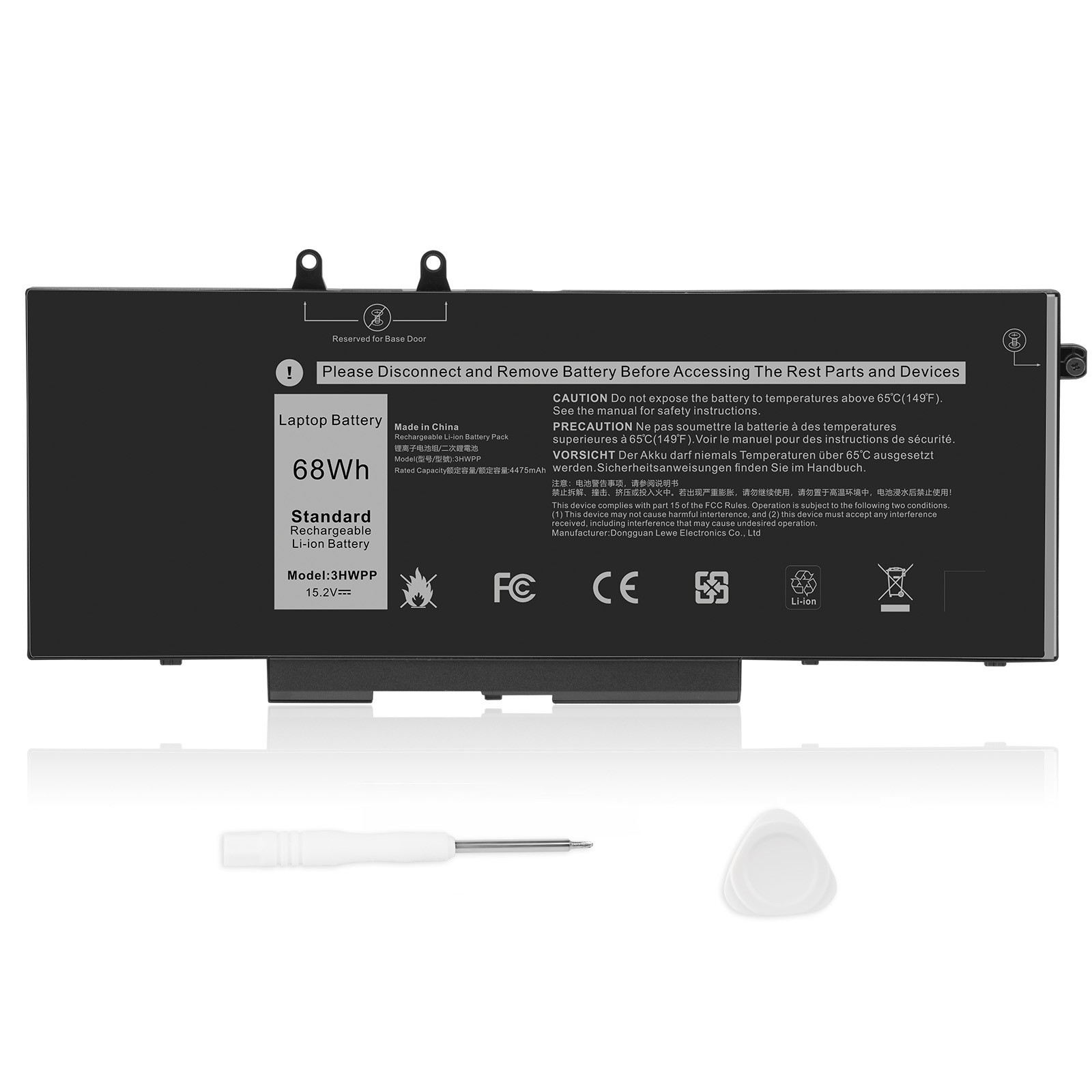
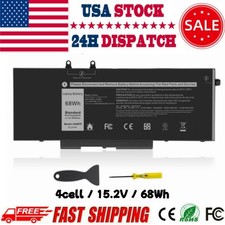
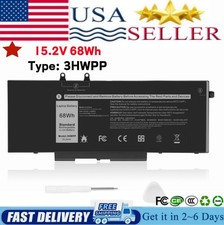
Tips: Please check carefully about your laptop model name/battery part number/battery shape and size to make sure you purchase the correct battery.
Specification:
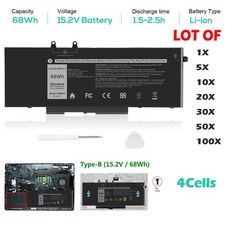
Battery type: Li-ion
Voltage: 15.2V
Capacity: 68Wh
Cells: 4 Cell
recharge cycles: 500
Operation time: Around 1.5-4hours
Replacement for Part Number:
3HWPP 03HWPP 10X1J N2NLL 1VY7F 01VY7F 3YNXM 451-BCMN
NOT fit: JK6Y6/H5CKD battery for Dell Inspiron 17 7500/7506 2-in-1 Silver Edition (Search B094Y183QW/B07GGT8QLT)
Compatible Models: (use "Ctrl+F to find your model quickly")
For Dell Latitude 5401 E5401 Series,
For Dell Latitude 5501 E5501 Series,
For Dell Latitude 5411 E5411 Series,
For Dell Latitude 5511 E5511 Series,
For Dell Latitude 14 5410 E5410 Series
For Dell Latitude 15 5510 E5510 Series
For Dell Precision 3541 Series,
For Dell Precision 3551 Series,
For Dell Inspiron 17 7500 2-in-1 Black Edition Series (NOT fit for Dell Inspiron 17 7500 2-in-1 Silver Edition)
For Dell Inspiron 17 7506 2-in-1 Black Edition Series (NOT fit for Dell Inspiron 17 7506 2-in-1 Silver Edition)
3HWPP battery for Dell Inspiron 17 7500/7506 2-in-1 Black Edition (What we sell)
Note:
To ensure that the battery is suitable for your laptop,please open your laptop case, check and confirm your original battery model and appearance, compared with our battery image, make sure that's what you need. Especially the location of the connector and the cable length (long or short)
How to confirm that the battery is suitable for your laptop?
Method 1: Use System Information to find your laptop model
Step 1: Press Windows + R to open Run window.
Step 2: Input "msinfo32" in the empty box and click OK to open System Information.
Step 3: Keep in the System Summary section, and you will find the System Model item in the right pane.
Method 2: Remove Battery from Laptop to find your laptop battery part number
Step 1: Switch off the laptop and unplug the power cable in case of electric shock
Step 2: Remove the back panel with the screwdriver. You should to this with care avoiding any harm to the laptop components.
Step 3: Disconnect the cable connected to the battery and then take out the battery. After that, you can check the specifications of your battery.
Install A New Battery:
- You need to turn off your laptop and disconnect the power.
- Disconnect the connection between the old battery and the motherboard to avoid unnecessary damage caused by disassembling the battery. Then unscrew the old battery screws one by one and carefully save each screw.
- Remove the old battery, carefully install the new battery on the battery case, screw in the screw, and connect the wiring of the new battery.
- If you don't understand the above steps, you can search for the video about laptop battery installation on YouTube. Maybe it will help you
Laptop Battery Instructions:
- Discharge the new battery to 10% (not 0%), then charge(100%) and cycle 3-5 times to wake up the new battery.
- It can calibrate the state of the battery by performing a complete and effective charging and discharging of the battery once a month.
- Charge it to around 50% when you store it long term.
- Do not keep your battery below 5% or deep discharge state (long time 0%), may turn on battery protection and cause the battery to fail to charge.
- Please feel welcomed to notify us of any inconvenience or fault in our battery.
The following are troubleshooting methods:
- Turn off the laptop.
- Unplug AC power.
- Remove the battery.
- Replace AC power.
- Turn on laptop,allow OS to boot.
- Once logged into the machine, perform a normal shut down.
- Unplug AC power.
- Replace battery.
On Jun 10, 2026 at 18:56:06 PDT, seller added the following information: