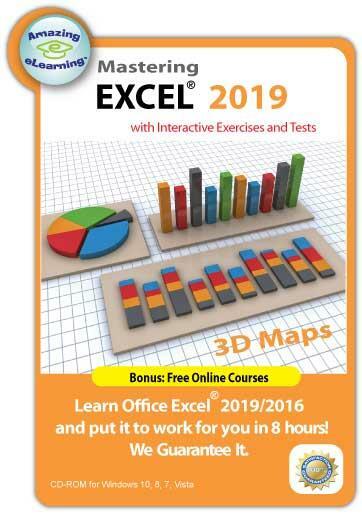
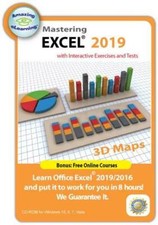
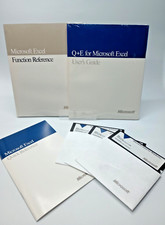
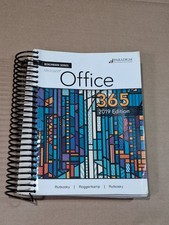
Mastering Microsoft Excel 2019 is easy with our Step-By-Step Training course Learn Microsoft Excel 2019 Interactive Training Course - Basic to Advanced User Learn Microsoft Excel 2019 Interactive Training Course - Basic to Advanced User
Click image to enlarge
Description
Excel 2019Training CD Course with Interactive Exercise and Hands-on Labs
Special Bonus: unlimited Online Access and free Microsoft office courses
Product Features:
- Learn Microsoft Excel 2019in less time and more effective than other training methods.
- New! Classroom approach: Learn each topics, practice with interactive exercises and Hands-on Labs.
- Come with practice files that the user can use along with the instructor - the best way to learn how to use Excel.
- Break down complex features into easy smaller topics to understand and go over the topics later.
- Learn Excel New Ribbon Interface and how to create spreadsheets with formulas, graphs, charts, and much more!
- Master these special functions - VLookup, Auto Fill and Flash Fill and many more!
Exclusive Features:
- Helpful captions and clear narrations for you to follow along
- Practice with interactive exercises
- Take the Hands-on Labs to reassure what you have learned
Level: Beginner to Intermediate
Lesson 1:Getting started with Excel 2019
- Introduction to Excel spreadsheet
- Getting familar with New Interface of Excel 2019
- Customizing the Quick Access toolbar
- Understanding the Status Bar
- Using Zoom-in and Mini Toolbar
- Using simple keyboard keys to move around
Lesson 2:Basic Operation
- Creating and Converting Workbooks
- Understanding Type of Data
- Entering Data using Enter and Tab
- Performing basic operations: edit, move, copy and delete
- Entering Data using AutoFill
- Using Flash Fill and adding comments to the cell
Lesson 3:Formatting Sheets, Cells and Tables
- Changing Font Settings of a Cell
- Applying Number Formats
- Adjusting row height and column width
- Hiding/unhiding rows and columns
- Applying Borders, Shading and Gradient Fill
- Using cell formatting
- Using Table Formatting
Lesson 4:Formulas and Functions
- Using Formulas
- Entering Formulas
- Using Sum Formulas
- Using Sum, Average and SumIF Function
- Using Vlookup Function
Lesson 5:Editing Graphics
- Inserting pictures
- Editing pictures
- Using SmartArt
- Inserting shapes
- Overlapping, grouping,& hiding graphics
- Capturing a Screenshot
Lesson 6:Chart Design
- Inserting Charts
- Adding Chart Elements
- Changing Source Data
- Changing Chart Layout and Format
- Formatting Chart Elements
- Enhancing a chart
- Hierarchical and Statistical Charts
- Using 3D Maps
- Creating Sparklines
Lesson 7:Managing Data Lists and Pivot Table Report
- Creating and Filtering a Data List
- Using Sort & Filter
- Using Subtotal
- Creating PivotTable Report
Lesson 8:Automating Tasks withMacros
- Installing Developer Tab
- Recording Macro
- Editing Macro
- Macro Security
Lesson 9:Helpful Keyboard shortcuts and hints
- Creating Excel Spreadsheet/chart in Word and PowerPoint
- Using Keyboard Shortcuts
- Helpful Hints
Lesson 10:Using Excel for Financial Analysis
- Analyzing a potential investment
- Setting up an integrated Budgets Based Upon a Series of Assumptions
- Creating Pro-Forma Financial Statements from Your Budgets
- Analyzing Financial Ratios, Contribution Margin and Breakeven Point
Bonus - Free Online Access:You are qualified to receive free access to our online site: stepbysteplearn.- Access the course from your PC, Tablet or Mac- Free courses, such as Financial Analysis using Excel- updated contents- lifetime membership- download practice files- 24/7 unlimited 10, 8, 7, Vista and XP CD or DVD Drive
Internet Access is not required. Pictures sell!
Auctiva offers Free Image Hosting and Editing.300+ Listing Templates!
Auctiva gets you noticed!
The complete Selling Solution.
Track Page Views With
Auctiva's FREE Counter