We have been on over 26 Years!All orders ship out on the next business day!!PLEASE read the description and ensure that your Surface Pro is one of the listed model models. By purchasing, you have agreed that you have read the listing and understand that this will only fit:Surface Pro 7+ / 7 / 6 / 5 / 4 / 3
Made by OMOTON12.3 inch ONLY
Amazon Price $50.00
For the Surface Pro 7+ / 7/ 6 / 5 / 4 / 3 12.3 inch ONLY !!❗Not for Surface Go series and other models of Pro series.
❗Keyboard, only Microsoft Surface Pro not included.
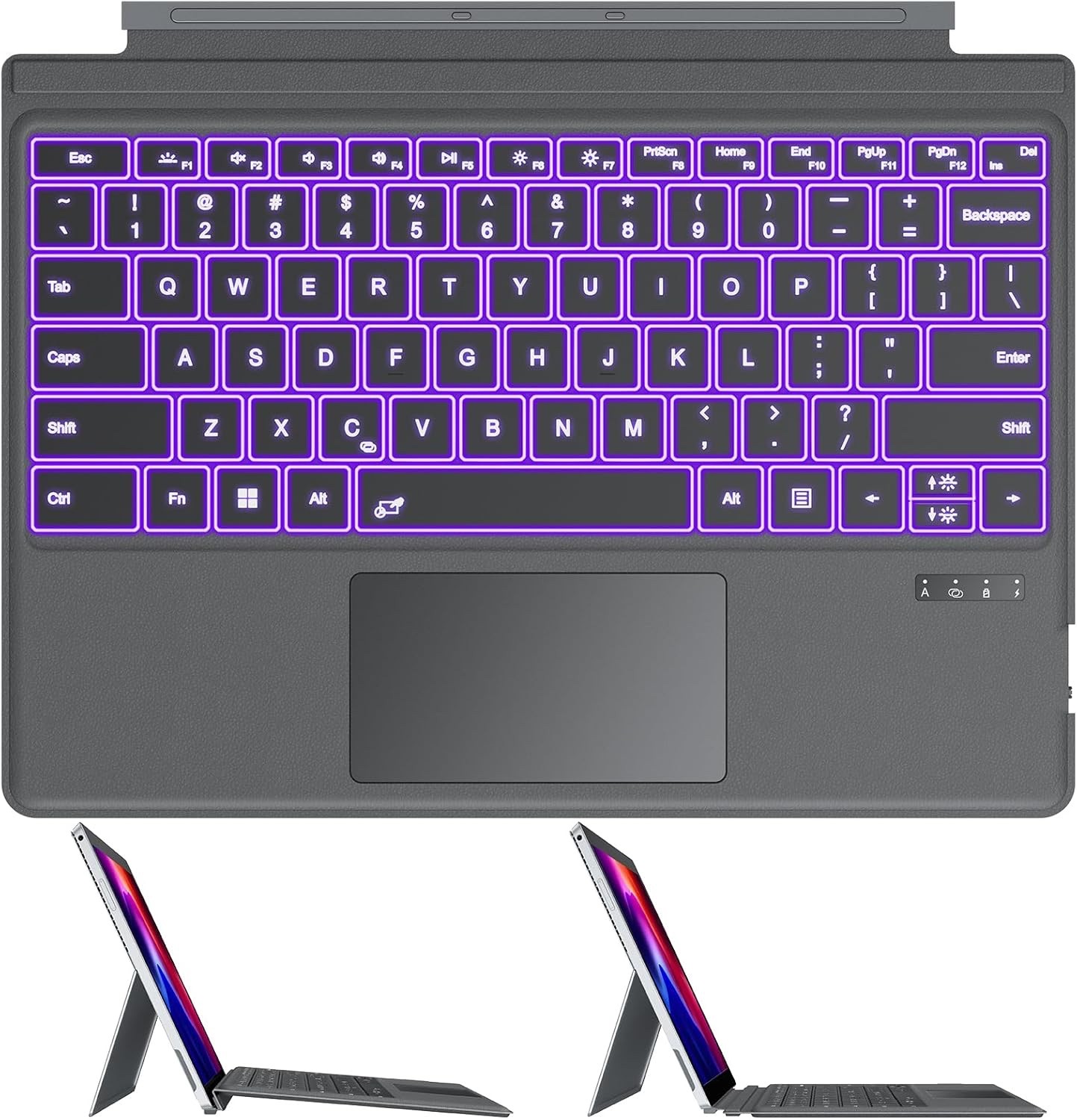
Bluetooth Wireless Surface Pro Keyboard with TouchpadMicrofiberType-C Charging7-Color BacklightColor: Gray
- Special Note:If the keyboard is paired with your tablet via Bluetooth but typing doesn’t work, please follow these steps on your tablet: Go to Settings → Accessibility → Keyboard → Turn off “Sticky Keys” → Turn off “Filter Keys”. For more details about product usage, please refer to the product page or user manual.
- Compatibility: Before making a purchase, please check your model number in Settings > System > About and refer to the compatibility chart. Compatible only with Microsoft Surface Pro 7+, Surface Pro 7, Surface Pro 6, Surface Pro 5, Surface Pro 4, Surface Pro 3. ❗Not for Surface Go series and other models of Pro series.
- ONLY COMPATIBLE WITH Surface Pro 7/ Pro 7+/ Pro 6/ Pro 5/ Pro 4/ Pro 3 【12.3 INCH】,
- How to Confirm your Devices Model: ①. opern " Settings" --- ②. click " System " ---③. click " About "
- NOT COMPATIBLE WITH Surface Pro 11/10/9/8/X【13 INCH】
- NOT COMPATIBLE WITHSurface Go series or any other models
- ! ! ! PLEASE NOTE: The Magnet Strip is only used to fix the keyboard and the tablet. It Cannot Charge or Connect to the Tablet
- Bluetooth Connection Steps (NOTE: please make sure the tablet and keyboard have sufficient power): 1.Press " Fn + C " for 1-3 seconds to turn on the keyboard's Bluetooth, 2.Connect with device: ①. Open "Setting", ②. Bluetooth & devices, ③. Click "OFF'' to ''ON", ④. Click “Add a device”, ⑤. Click "Bluetooth", ⑥. Select "Bluetooth Keyboard", ⑦. "Done"
- Rechargeable & Sensitive Touchpad: Built-in 750mAh rechargeable battery【 Independent charging via the included Type-C charging cable 】, Charge up in 2 hour and enjoy 50 hours of uninterrupted use. the keyboard has a multi-touch trackpad that enables multi-gesture quick operations
- 7 Colors Backlit: This keyboard has 7 colors of backlight and 3 brightness levels to choose from, typing smoothly at anytime and work from anywhere
Questions and Answers:
Question 1: Can I charge the keyboard from the device through the magnetic strip?
Answer: No, this Bluetooth keyboard must be charged using the included charging cable. It takes 2-3 hours to fully charge.
Question 2: How do I connect the keyboard? Is it automatic physical connection or manual Bluetooth pairing?
Answer: It requires manual Bluetooth pairing. Press FN + C to enable Bluetooth mode.
Question 3: Why is it not compatible with my device?
Answer: Before purchasing, please check whether your device model is compatible with the keyboard via
Settings → System → About →Model Number.
Question 4: Why did the keyboard or backlight suddenly stop working?
Answer: This may be due to low battery. Insufficient power can affect kevboard functionality. Please try charging it first with the provided cable.
Question 5 : Is the keyboard powered by the Surface Pro?
- Answer: No, the keyboard requires separate charging via the Type-C port, so it does not drain any power from the Surface Pro. You can charge it while typing (by connecting it to your computer or a charger via the Type-C port).
Question 6: Why is the keyboard draining so quickly?
- Answer:
- 1.Check if the backlight is enabled. The backlight consumes power very rapidly when activated.
- 2.Verify if the keyboard is fully charged.
PLEASE read the description and ensure that your Surface is one of the listed models. By purchasing, you have agreed that you have read the listing and understand that this will only fit the Model numbers listed above. We charge a 20% restocking fee if you return the case because you did not check your model number.