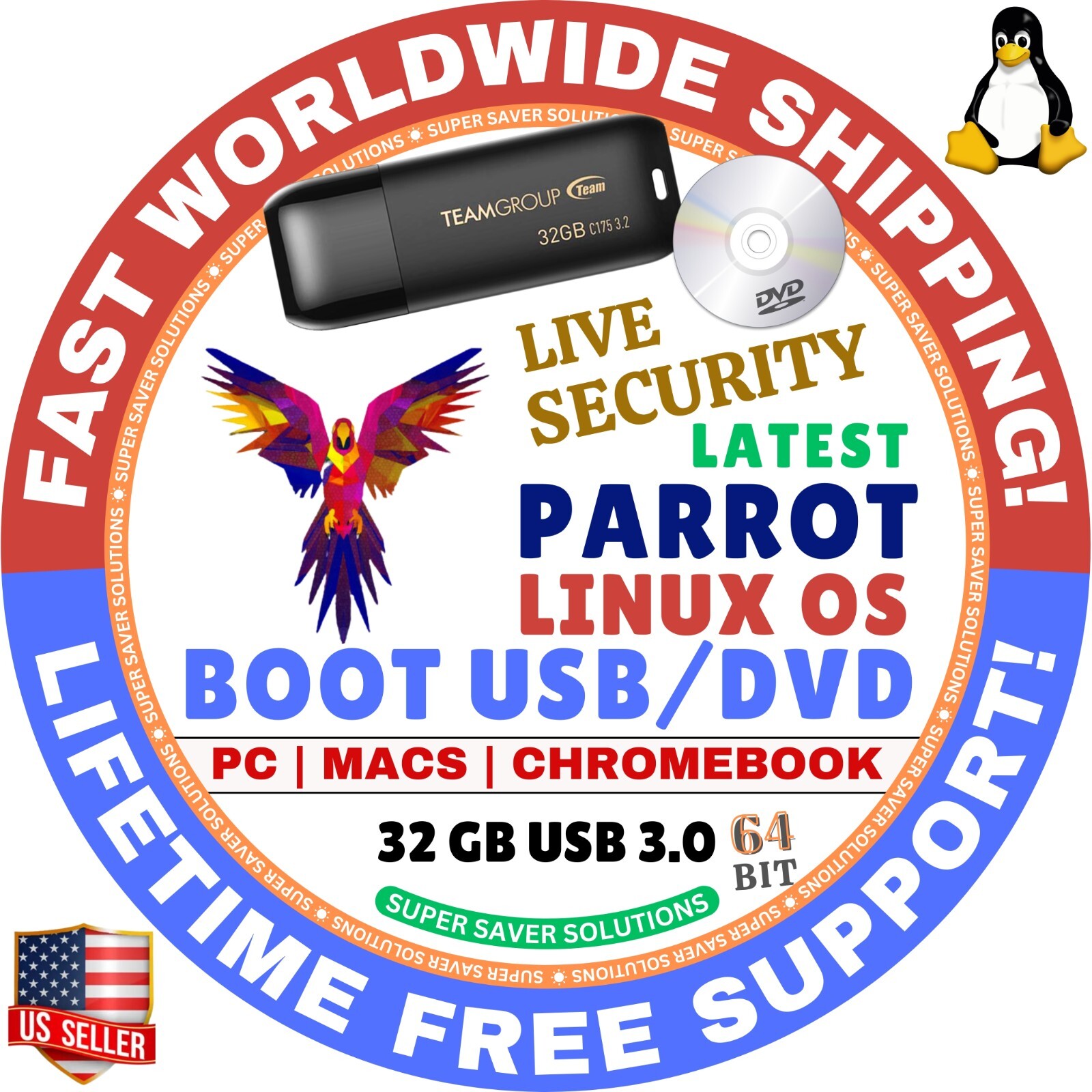
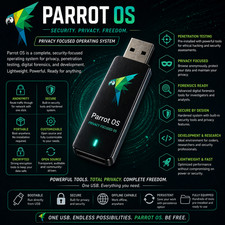
PARROT LINUX OS
AMD64 / ARM64
LIVE, VIRTUAL, SECURITY, HOME, HTBUSB & DVD LIVE / FULL INSTALL⬇ Checkout 25-in-1 Linux Master Collection
➡️CLICK FOR 25-in-1 MASTER LINUX USB
Why Choose PARROTLINUX OS?The ultimate framework for your Cyber Security operations
Choose between 600+ tools for every kind of Red and Blue team operation.
Parrot Security provides a huge arsenal of tools, utilities and libraries that IT and security professionals can use to test and assess the security of their assets in a reliable, compliant and reproducible way. From information gathering to the final report. The Parrot system gets you covered with the most flexible environment.
Live/Install DVD:Try without installing it in live mode, or go straight to installation.
Shipping & Warranty:
Same-Day Shipping:Orders placed before 12 PM EST are shipped the same business day.
30-Day Money-Back Warranty:If you’re not satisfied, return it within 30 days for a full refund.
Free Support:Our dedicated support team is available 7 days a week to assist you with any questions or issues.🚩 What's included in 25-IN-1 MASTER COLLECTION?▸ Antix OSProxmox OS VE ▸ Puppy OS (BookwormPup64) ▸ Rocky OS (gnome) ▸ Tails OS ▸ TinyCore OS ▸ Void OS (xfce) ▸ Zorinaruda OS (Cinnamon) ▸ Haiku OS ▸ Kali OS (Installer) ▸ KDE Neon OS (user) ▸ Linux Lite OS (xfce) ▸ Lubuntu OS (LTS Desktop) ▸ Manjaro OS (KDE Plasma) ▸ Mint OS (Xia-Cinnamon) ▸ MX Linux OS (xfce) ▸ Nix OS (gnome) ▸ Nobara OS (Official) ▸ Peppermint OS (Debian) ▸ Pop!_OS ▸ Proxmox OS VE ▸ Puppy OS (BookwormPup64) ▸ Rocky OS (gnome) ▸ Tails OS ▸ TinyCore OS ▸ Void OS (xfce) ▸ Zorin OS
☑️ HOW TO BOOT LINUX OS FROM USB OR DVD?
✅STEPS FOR WINDOWS PC & CHROMEBOOKS
1. Turn-off your computer
2. Insert the USB/DVD into any available USB port/DVD drive.
3. Switch on your computer
4. Press the key that allows your computer to boot to an alternate device (ESC on many HPs, F12 on many Dells, F8 on many custom builds, yours may vary, see your computer's documentation)
5. At the Book-up screen, select Boot from USB Interface or Boot from DVD option, press enter.
6. Wait for OS to load, then follow on-screen links for initiate OS.
7. Wait for system to boot into Linux OS. Done! Enjoy!
✅STEP FOR APPLE MACS DEVICES
1. Turn-off your computer
2. Insert the USB into any available USB port
3. Switch on your computer
4. Press the Option keyon your keyboard to go the boot menu
5. Select EFI Book
6. Follow on-screen links for initiate OS.
7. Wait for system to boot into Linux OS. Done! Enjoy!