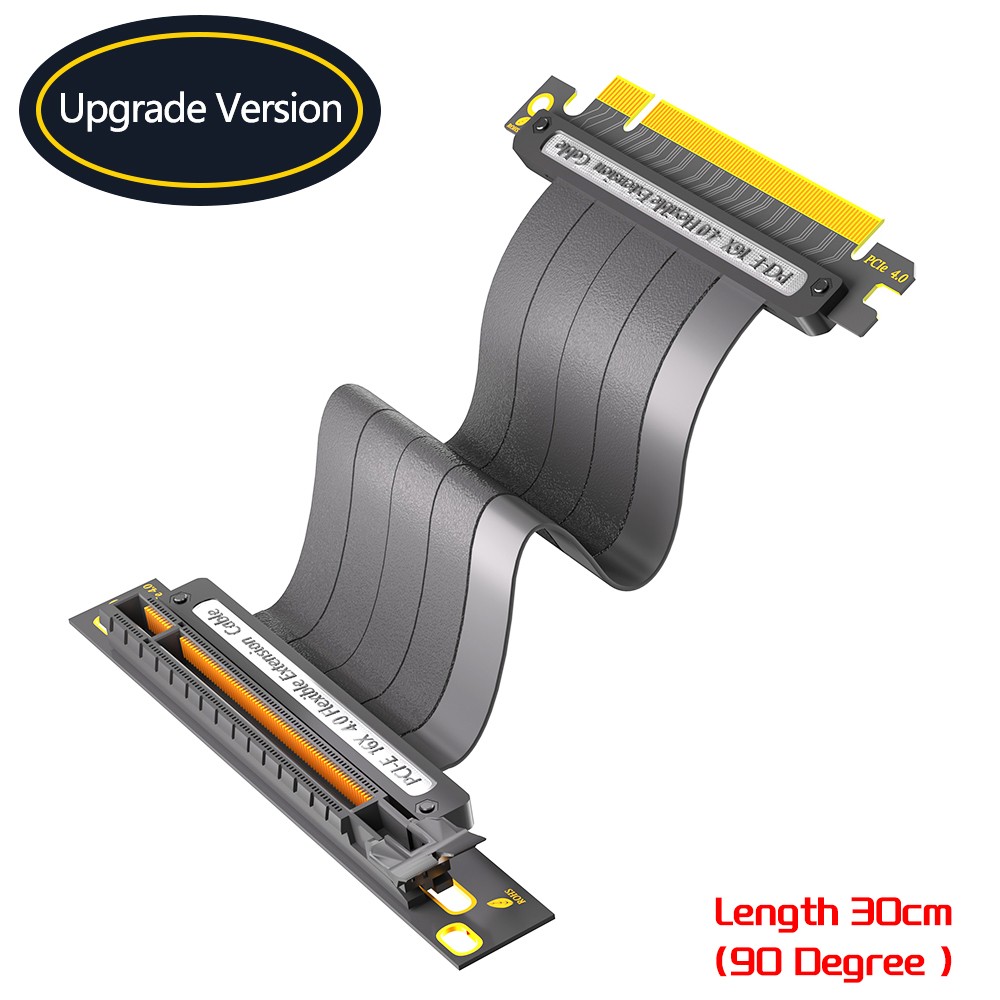
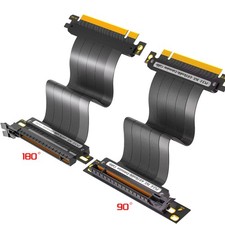
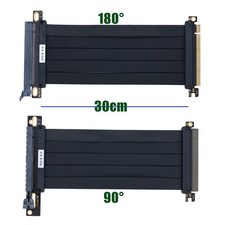
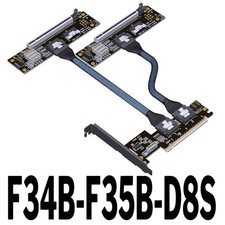
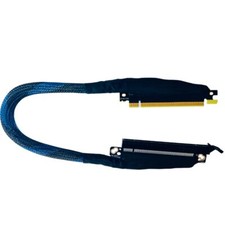
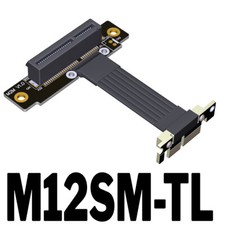
PCIE 4.0 Extension Cable, Black 16x Shielded High Speed GPU Riser Cable with PCI Express Port for GPU Extension Card, Length 30cm
Specification:
- 1.PCI-E 4.0 riser cable designhigh quality hand-soldered gold pin, allowing for maximum conductivity and ensure signal integrity. Using imported cables with pure copper tinned cores, this powercable extension gives you full-speed, stable and almost attenuation-free signal transmission.
- 2.Imported silver-plated cable with up to 64GBS, in line with PCIE 4.0 transmission standard and remains backward compatible with a maximum transfer speed. Enhanced 12V power supply with 12PIN silver-plated cable delivers 12V to meet the needs of 4090 high-power graphics cards.
- 3.With segmented design, this GPUriser cable allows for airflow, making it easy to reduce operating temperature and improve overall system performance.
- 4.Plug and play, no BIOS setup required. Featuring a unique cable protector that effectively enhances the durability of the extender as well as prevents cable damage, even if the extender is folded or twisted, this GPUextension cable provides the best connectivity and lifespan.
- 5.Compatible with most GPU/motherboard components and fits most cases. Supports PCIE 4.0/3.0/2.0/1.0, compatible with RTX4090 and all gen 4 GPUs, RTX3090ti, RTX3090, RTX3080ti, RTX3080, RTX3070ti, RTX3070, RTX3060ti, RTX3060, RX6950XT, RX6900XT, RX6800XT, RX6800, RX6700XT, RX6600XT, RX6500XT / Chipset - x570, B550, Z590, Z690
Package contents:
- 1x PCI-E 4.0 Extension Cable
PCIe 4.0 GPU Vertical Mount Adapter Cable User Manual
I. Core Compatibility and Purchase Reminders
1. Confirm Interface Specifications: This product is PCIe 4.0 x16 standard, only compatible with motherboards and graphics cards that support the PCIe 4.0 standard (backward compatible with PCIe 3.0/2.0, but performance will decrease slightly with lower versions). For non-4.0 platforms, please confirm the motherboard's PCIe slot version in advance to avoid blind installation.
2. Chassis and Installation Scenarios: Before purchase, please check the compatibility of the chassis' GPU vertical mounting bracket, the length of the graphics card, and the available space inside the chassis
3. Prohibited Scenarios: Do not use this product with special devices that do not support full-speed direct GPU insertion into the motherboard (such as mini hosts, industrial motherboards) and low-power graphics cards without independent power supply, otherwise, operational abnormalities may easily occur.
II. Installation Operation Specifications (Key Error-Prevention Steps)
(I) Pre-Installation Preparation
1. Complete Power Off: Turn off the computer power, unplug the power cord, and press and hold the power button for 10 seconds to release residual power. Live operation is strictly prohibited (to avoid burning the motherboard and graphics card interfaces).
2. Static Protection: Wear an anti-static wristband, or touch a metal wall/ground to release static electricity from your body, preventing static electricity from damaging hardware interfaces.
(II) Core Installation Steps
1. Fix Both Ends of the Adapter Cable:
- Insert one end (golden/marked end) into the motherboard's PCIe x16 slot, ensure the buckle is fully engaged, and gently pull to verify no looseness (starting the computer with a half-inserted state is strictly prohibited).
- Connect the other end to the graphics card's PCIe x16 interface, engage the buckle similarly, and do not forcefully bend the interface (for vertical mounting scenarios, fix the graphics card with the chassis bracket to avoid cable pulling the interface).
2. Power Supply Connection Specifications:
- If the graphics card has 8Pin/6Pin power supply, it must be connected to the power supply cable separately. Transmitting power through the adapter cable is strictly prohibited (the adapter cable only transmits data and has no power supply function).
- Avoid mutual winding between the power supply cable and the adapter cable to prevent signal interference.
3. Wiring and Fixing:
- Route the cable along the chassis' cable management slot, keep the adapter cable straight, and do not severely bend, squeeze, or wind it (especially for 20cm short cables; bending may easily cause signal breakage).
- Use chassis cable ties to fix the cable, leaving an appropriate amount of slack to avoid cable pulling due to chassis vibration.
III. System Settings and Debugging (Key to Avoid Crashes/Black Screens)
1. BIOS Parameter Adjustment (Must Do):
- Press the BIOS shortcut key (common ones: F2/Del/F10) after booting to enter BIOS, and find "PCIe Settings".
- If the system operates abnormally (black screen, driver crash), set "PCIe Link Speed" to Gen 3.0 (PCIe 4.0 has extremely high requirements for short cable signals; downgrading to Gen 3.0 can greatly improve stability and be compatible with most usage scenarios).
- Confirm that "PCIe Power Management" is turned off to avoid abnormal low-load speed reduction.
2. Driver and System Verification:
- Install the latest official graphics card driver (download from NVIDIA/AMD official website; reject third-party universal drivers).
- After booting, use GPU-Z software to check "PCIe Link Width" (should be x16) and "Link Speed" (consistent with BIOS settings) to confirm the link is normal.
- Run 3DMark or large-scale games for 10-15 minutes; no stuttering, black screen, or restart means the installation is successful.
IV. Usage Taboos and Maintenance (Reduce After-Sales Issues)
1. Absolutely Prohibited:
- Overclocking: Overclocking the graphics card in the adapter cable scenario is not recommended, as it may easily cause signal instability and driver crashes.
- Hot Plugging: Plugging or unplugging the adapter cable or graphics card while the computer is on is strictly prohibited, which will definitely burn the interface.
- Overload: Do not use when the full-load power consumption of the graphics card exceeds 80% of the power supply's rated power (easily triggering dual abnormalities of power supply and signal).
2. Daily Maintenance:
- Regularly clean chassis dust to avoid poor cable contact caused by dust accumulation.
- Check the cable interface and wiring every 3 months; if the cable is deformed or the interface is loose, replace it in time and do not use it reluctantly.
V. Quick Troubleshooting for Common Problems (For Buyer Inquiries)
Abnormal Phenomenon
Possible Cause
Quick Solution
Boot Black Screen
Adapter cable not plugged in tightly/loose interface
Power off, re-plug both ends of the adapter cable, and confirm the buckle is engaged
Driver Crash/Game Crash
Unstable PCIe 4.0 signal
Enter BIOS and set PCIe speed to Gen 3.0
Graphics Card Not Recognized
Motherboard BIOS not updated
Update the motherboard BIOS to the latest version
Low Transmission Rate
Non-PCIe 4.0 platform
Accept normal performance loss or switch to direct insertion
VI. After-Sales Disclaimer (Avoid Return Risks in Advance)
1. Return scenarios not caused by product quality issues: Failure to install according to specifications, unauthorized cable modification, use of incompatible platforms/chassis, failure to adjust BIOS parameters and forced overclocking.
2. Warranty Scope: Only covers quality issues such as damage to the cable itself and cable breakage, excluding secondary damage to hardware caused by improper installation or incompatible usage scenarios.
3. After-Sales Support: If buyers encounter operational abnormalities, first guide them to debug the BIOS and re-route according to the above steps, and handle after-sales services only after confirming it is not a cable quality issue.