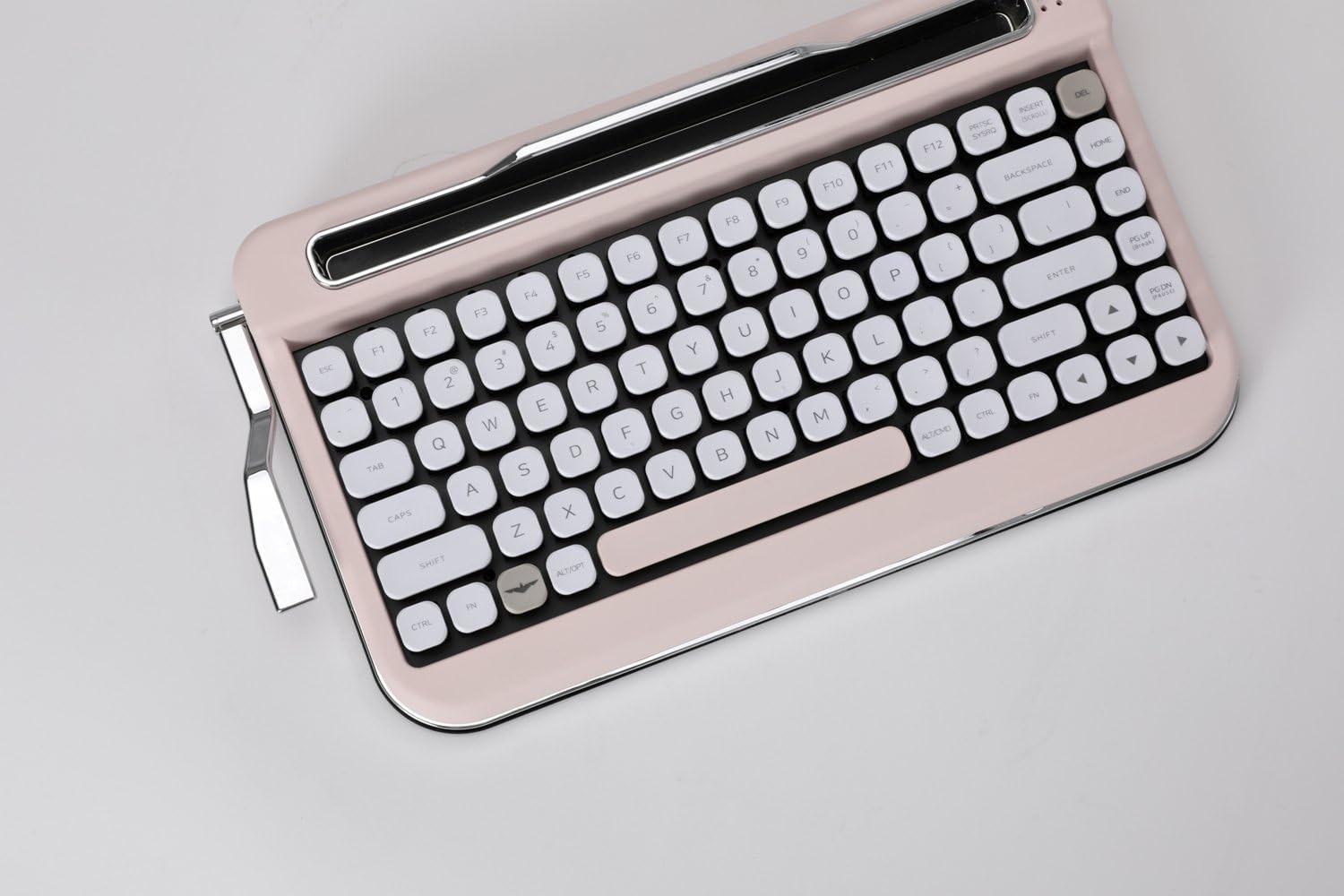
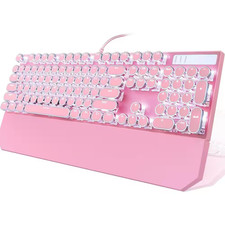
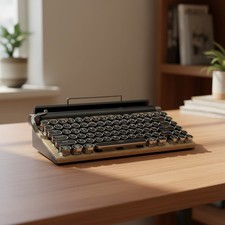
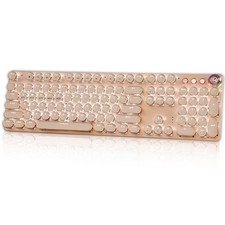
- All OS Support - Supporting Windows 8, 10 / Android/iOS/Mac OS wil help PENNA to run on most devices. (Some older devices such as IPAD2 is not supported)
- Cherry Mechanical KeySwitch - Aoption of Cherry Switch, known as the world's most advanced switch technology, ensures fast and accurate typing.
- Macro Bar - Utilize Macro bars to save frequently used keys, worlds and recall them any time by pressing the bar just one.
- Bluetooth 4.2(BLE) - Widely Compatible with Cellphone,Tablet or laptop with Android, Windows10, iOS and Mac OS system NOTE: For Desktop PC Laptop without bluetooth function, you need to use third-party bluetooth dongle adapter (not included) before use this bluetooth keyboard
- Multi-pairing - Restering up to 5 devices via Bluetooth.
- Cradle Holder - Built-in cradle holds your smartphone / tablet at the ideal angle for viewing
Please! Please! Read manual!
If have problem, tech-support team will help you! via facebook, instgram.
1. AA batteries are not included. Insert the AA battery and turn it on using the switch on the back.
It is normal for the red LED to blink and turn off. The macro bar should be in the center position.(Do not raise the mecro bar)
2.All keys are set based on Win OS. Even if you are using Mac or iOS, please use the switch in Win OS.
If you change the OS switch on the back to iOS, the keying will change and it will not work according to the existing manual.
If you want to use iOS mode, you must manually change the position of the keycap
3.Most of the customers who complained that they were not working put the OS switch on iOS and turned on the product.
This is not an error. The product works well in Win mode. If it is difficult to replace the key position, use it in Windows mode.
Please Check for using PENNA Keyboard
HOW TO
CONNECT BLUETOOTH
STEP 01.
By pressing FN+B at the same time, you may activate the Bluetooth pairing mode. Among the 5 LED lights at the top left corner, an empty slot, not currently assigned to any device will be lit. However, if the slot is previously assigned to another device, the LED will appear blinking.
STEP 02.
Press F1~F5 located directly below the slot you want to assign for the connection.
The LED will start blinking and be in the Pairing mode (for connection) for 60 seconds. If no further action is taken in 60 seconds, the pairing mode will end automatically. Now, you may find the PENNA paired with any of your Bluetooth activated devices, such as PADs / PCs / MOBILE PHONES.
STEP 03.
Ending the Bluetooth pairing mode. Press FN+B at the same time to activate the pairing mode and by pressing FN+ESC,
you may exit the Bluetooth pairing mode. The pairing mode will be terminated and the keyboard will try to connect to the device to which it was last connected
Features
Multi-pairing
Support up to 5 devices, a multi-pairing feature.
You can sync various devices such as PC, mobile phones, tablets, etc to PENNA.
You can utilize FN+F1~F5 keys to select which device you want.
Use PENNA at home, school, cafe, and any places you can think of!
Wireless Blutooth 4.2(BLE 4.2)
Ensuring security and battery efficiency by using Bluetooth 4.2.
Most recent version of Bluetooth 4.2 services automatic pairing and battery efficiency,
thereby creating a continuous usage environment.
Macro Bar - Copy&Paste
Saving frequently used keys and sentences both of which can be recalled instantly by using the macro bar. Registration of frequently used keys such as Enter/Backspace, etc and even sentences by using MACRO BAR