When you click on links to various merchants on this site and make a purchase, this can result in this site earning a commission. Affiliate programs and affiliations include, but are not limited to, the eBay Partner Network. When you click on links to various merchants on this site and make a purchase, this can result in this site earning a commission. Affiliate programs and affiliations include, but are not limited to, the eBay Partner Network.
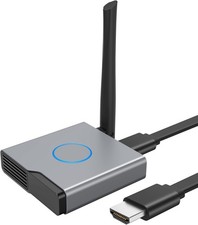
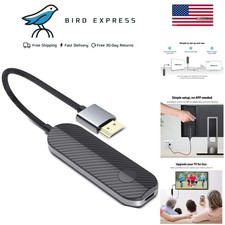
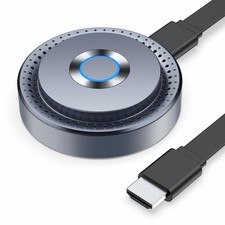
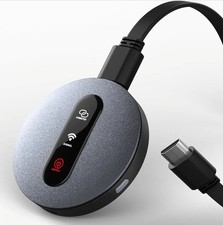
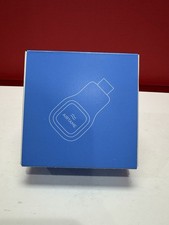
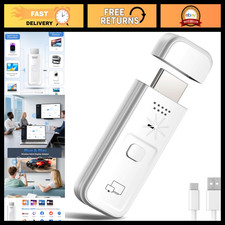
Features & details - 【Universal Cross-Platform Support】This compact wireless HDMI adapter supports AirPlay for iOS and Mac systems, along with Miracast for Android and Windows devices, offering true versatility across all your gadgets.
- 【Wide Compatibility】Compatible with all HDMI-enabled displays including HDTVs, monitors, and projectors. Enjoy vibrant 1080p Full HD video at 60Hz for a truly immersive viewing experience. Easily switch between landscape and portrait modes to best match your content. Perfect for conference rooms, home theaters, and educational settings.
- 【Dual-Band Stable Connection】Equipped with 2.4G + 5GHz dual-band antennas and an advanced stability engine, this HDMI wireless extender delivers smooth, interference-free streaming even in busy network environments for a reliably lag-free experience.
- 【App Limitations】Please note: Due to HDCP copyright protection, some streaming apps—including Netflix, Amazon Prime Video, Hulu, and others—may not allow screen mirroring
- Using DLNA on Android & iOS
- Open your preferred video or music app (e.g., YouTube or TikTok) and start playing your content.
- Tap the DLNA/AirPlay icon (usually found in the upper right corner).
- Find and select "MirascreenPro-XXXX" to begin DLNA/AirPlay streaming.
- For iOS Devices (AirPlay)
- Ensure P2P Mode: The device should be in P2P mode (default startup mode).
- Open Control Center on your iPhone/iPad.
- Tap Screen Mirroring and style="margin-top:0; margin-bottom:0;">
- Enter the password shown on your screen (required only for the first connection) to start mirroring.
- For Android style="margin-top:0; margin-bottom:0;">
- Ensure P2P Mode: Use the front button to switch the device to P2P mode.
- On your Android device (Android 4.4 or later with Miracast support), enable screen mirroring: devices → Connection may vary by device). Alternatively, swipe down to open the quick panel and tap Smart View, Cast, or Wireless Display.
- For Mac Devices (AirPlay)
- Ensure P2P Mode: Confirm the device is in P2P mode.
- Click the AirPlay icon in the menu bar of your Mac.
- For Windows style="margin-top:0; margin-bottom:0;">
- Ensure P2P Mode: Verify the device is in P2P mode.
- (For Windows 8.1 and later, ensure your system supports Miracast.)
- Press Windows + K to open the Connect panel (or Windows + P for projection options).
- Wait a few seconds for the connection to complete and your screen to appear.
- Before connecting, use the toggle button to select the correct mode for your system. This device supports a stable transmission range of up to 13–15 feet, ideal for home entertainment, business meetings, presentations, and group gatherings.
 |
|