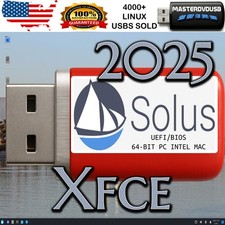
🔥 SAVE BIG ON LINUX MEGA PACKS 🔥
🛒 VISIT MY store LINK HERE 🛒
🚚 Ships Safely in Tamper Proof PackagingSOLUS LINUX OSAMD64 BIT
BUDGIE | GNOME | PLASMA | XFCEUSB / DVD - LIVE / FULL INSTALL
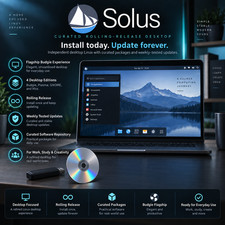
Why ChooseSOLUS LINUX OS?Solus is an operating system that is designed for home computing. Every tweak enables us to deliver a cohesive computing experience.
Solus provides a multitude of experiences that enable you to get the most out of your hardware.
From our flagship Budgie experience for modern devices to the more traditional XFCE experience for lower-end devices, Solus aims to provide the best experience for your device.Most Popular Builds:Solus Budgie - A feature-rich, luxurious desktop using the most modern technologies.
Solus GNOME - A simple, streamlined desktop for more modern hardware.
Solus Plasma - A sophisticated desktop experience for the tinkerers.
Solus XFCE-Beta - A lightweight desktop that aims to be fast while still being friendly.
Build Versions -Solus Budgie 4.7, Solus GNOME 4.7, Solus Plasma 4.7, Solus XFCE 4.7, Solus Budgie 4.6, Solus GNOME 4.6, Solus Plasma 4.6, Solus XFCE 4.6, Solus Budgie 4.5, Solus GNOME 4.5, Solus Plasma 4.5, Solus XFCE 4.5, Solus Budgie 4.4, Solus GNOME 4.4, Solus Plasma 4.4, Solus XFCE 4.4, Solus Budgie 4.3, Solus GNOME 4.3, Solus Plasma 4.3, Solus XFCE 4.3, Solus Budgie 4.2, Solus GNOME 4.2, Solus Plasma 4.2, Solus XFCE 4.2
Live/Install DVD:Try without installing it in live mode, or go straight to installation.
Shipping & Warranty:
Same-Day Shipping:Orders placed before 12 PM EST are shipped the same business day.
30-Day Money-Back Warranty:If you’re not satisfied, return it within 30 days for a full refund.
Free Support:Our dedicated support team is available 7 days a week to assist you with any questions or issues.
☑️ HOW TO BOOT LINUX OS FROM USB OR DVD?
✅STEPS FOR WINDOWS PC & CHROMEBOOKS
1. Turn-off your computer
2. Insert the USB/DVD into any available USB port/DVD drive.
3. Switch on your computer
4. Press the key that allows your computer to boot to an alternate device (ESC on many HPs, F12 on many Dells, F8 on many custom builds, yours may vary, see your computer's documentation)
5. At the Book-up screen, select Boot from USB Interface or Boot from DVD option, press enter.
6. Wait for OS to load, then follow on-screen links for initiate OS.
7. Wait for system to boot into Linux OS. Done! Enjoy!
✅STEP FOR APPLE MACS DEVICES
1. Turn-off your computer
2. Insert the USB into any available USB port
3. Switch on your computer
4. Press the Option keyon your keyboard to go the boot menu
5. Select EFI Book
6. Follow on-screen links for initiate OS.
7. Wait for system to boot into Linux OS. Done! Enjoy!