V06 Version is without DDM function
V08 Version is with DDM function
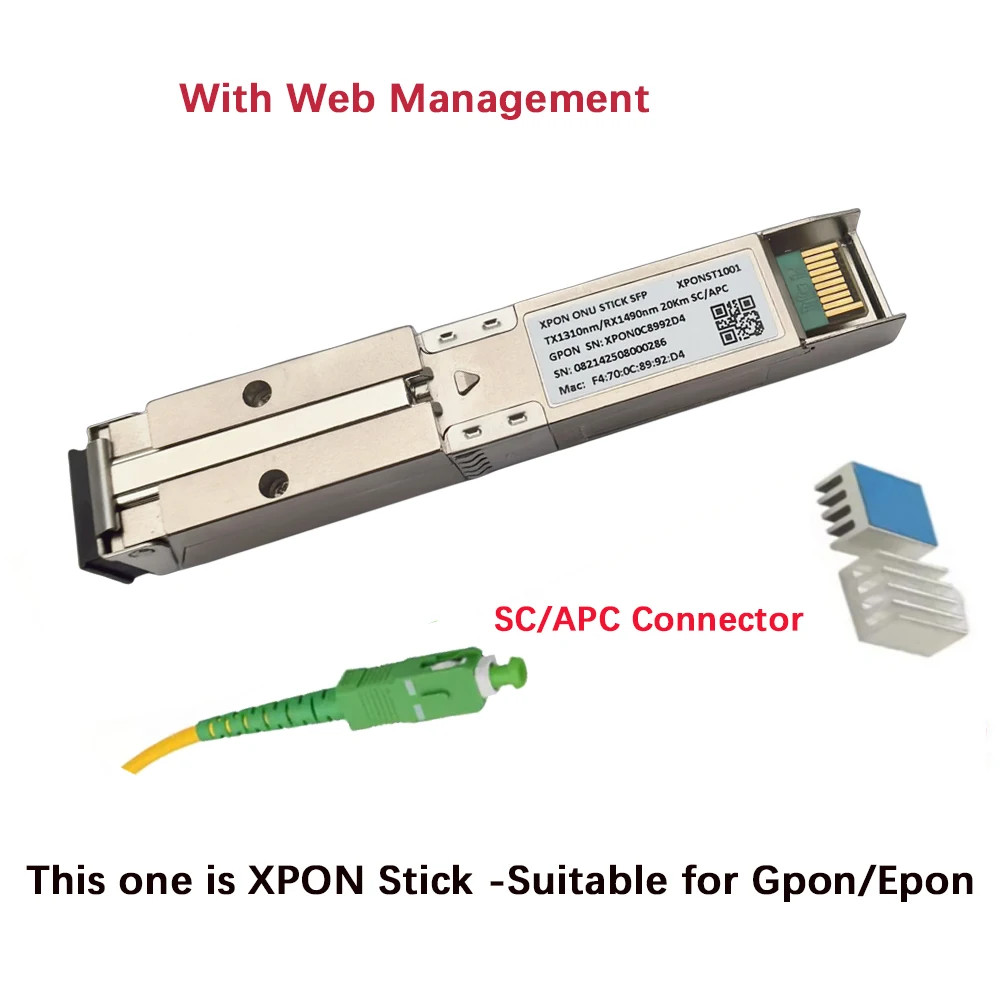
XPON 1.25G/2.5G SFP ONU Stick With MAC SC Connector DDM pon module
XPON=XPON 1.25G/2.5G ,It can use for Epon and Gpon at the same time
Connector:SC/APC
Product Overview
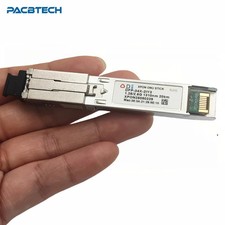
PAC-XPON-STICK is a miniature XPON SFP ONU device that can be plugged into the SFP optical port of a switch or routing device to provide XPON network access to the device. In principle, the
PAC-XPON-STICK is an optical module, but it has a built-in CPU, flash memory, and a system, so it can be used as an optical cat.
Key Features
1. 1490 nm wavelength downstream,1310 nm wavelength upstream
2. GPON: 2.5Gb/s line rate downstream, 1.25 Gb/s line rate upstream
EPON: 1.25Gb/s line rate downstream, 1.25 Gb/s line rate upstream
3.
Complies with SFP Multi-Source Agreement (MSA) SFF-8074i
4. Digital Diagnostic Monitor(DDM) interface compatible with SFF-8472
5. Complies with ITU-T G.984.2, G.984.2 Amendment 1
6. Complies with ITU-T G.988 ONU management and control interface (OMCI)
7.
Class I laser safety standard IEC-60825 compliant
8.
RoHS compliance
Technical Parameter
Item
PAC-XPON-STICK
Interface
1*PON
PON
Physical Interface: PON Port
type: SC/UPC ( if you need SC/APC ,Please leave message )
Size
8.2mm x 6.8mm x 75mm
weight
<19g
Environment
Operating temperature:-40°C~85°C (I Temp)
Operating temperature:0°C~70°C (C Temp)
Storage humidity:5%~95% (non-condensing)
Power Supply
3.3V
Power Consumption
<2.5W
PON Function
GPON/EPON adaptive
Mode
SFU
Optionally support some functions of HGU(DCHP/PPPoE/NAT)
Configure MAC address
Support
Configure SN
Support
Configure Vendor ID
Support
Configure PVID
Support
DDMI
Support
Management
Http/telent/SSH/TR069
SFP MSA Standard
Support
VLAN
VLAN transport transmission
VLAN swtich function
Application The product is an MSA-compliant SFP that incorporates not just the optics for an ONU, but all of theelectronics need as well.
It is a 'PON on a Stick*' that an entire FTTH ONU in a slightly oversized SFP.lt can be plugged into networking equipment.
Allowing the data interfaces on a switch, router, etc. to be customized for different fiber environ-ments and distance requirements. User Manual SFU-Introduce configuring the network
1GE ONT software version is SFU default,You dont need to do any configuration via ont web.Support port mode of VLAN configuration and u could configure port vlan of ont via olt.After reset ont,there is no wan connection.
1. Prepare for login the ONT webmanagement Before you login the ONT,You should confirm the connect between the ONT and your PC is normal.And stick module is connected the OLT equipment by fiber. Step 1 Configuring the IP address of your PC to 192.168.1.x(2~254) subnet mask is 255.255.255.0 Step 2 Ping IP address of the ONT (Default address is 192.168.1.1).If the PC can get right reply from Ping command,it is mean the connecting between the PC and ONT is normal.
【Figure 1】 Note:
Please don’t power off the ONT in the process of manage the ONT by the WEB interface.
2 Login ONT
Step 1 Open the explore browser and input the IP address:http://192.168.1.1. (ONT defaultIP)
Step 2 You need the user name and password for login.The default username and password are on the label of the ONT bottom.Default administrator user name and password is “admin” and “admin”
【Figure 2】
After you login the ONT as the administrator,you can check,configure and change the configuration of the ONT.Some of configuring and changing will take effect only after restart the ONT.
Login success,a “Device Status” windows will show as bellow.
3 ONTAuthentication
pane on the right, you can view or change the authentication mode for the registration of the ONT on the OLT, as shown in Figure.
Click Apply to apply the configuration
Note: Suggest you use the Chrome Internet Explorer to avoid display problem.
You can modify:
1.MAC address via LLID index 0 after inserting EPON optical fiber
2.GPON SN via Serial Number after inserting GPON optical fiber
3.PLOAM password/LOID/LOID password after inserting GPON optical fiber
Once reset , these settings will be restore to default
There is another way to modify via commands in telnet:
1.enable telnet service in windows system
2.telnet 192.168.1.1
3.login account: admin/admin
4.flashsetELAN_MAC_ADDRXXXX//Modify MAC address
flashsetGPON_SNXXXX//Modify Loid ploam
flashdefaultcs//reset
reboot
4 LANConfiguration
In the navigation tree on the left,choose Advanced Setup>LAN Port Work Mode.In the pane on the right,determine whether the LAN port worksmode.
You can modify management ip address at this page
Management
1Reboot &Commit
2Restore Default &Backup
Selected admin-> Backup/Restore
3Update software
Selected admin -> Firmware software -> Selected update file, Upgrade to the latest software version of the application
Statistic
It shows LAN statistics and PON interface statistic